NinjaTech AI

NinjaTech AI • Shipped 2024

Making Autonomous AI Feel Simple

Designing how anyone can build software, dashboards, and automated workflows through natural language, from first prompt to deployed product.

Smooth gradient background blending soft pink, purple, and blue hues.

Sonnet 4.5

Thank you! Your submission has been received!
Oops! Something went wrong while submitting the form.

Create slides

Build website

Develop apps

Role

Product Designer

Duration

Oct 2023 - Present

Team

Man wearing glasses and a dark blue sweater smiling and looking slightly to the right against a light gray background.
Smiling woman with long black hair wearing a gray blazer and navy blue top against a light gray background.
Portrait of a smiling woman with shoulder-length brown hair wearing a dark top with a bow.

Context

NinjaTech AI is building SuperNinja, an autonomous AI agent with its own virtual machine that lets anyone build software through natural language.

I joined as product designer to shape the core experience from the ground up. The challenge: making powerful autonomous AI feel simple enough for anyone to use, while keeping the agent's work visible and trustworthy.

Over two years, we designed the end-to-end task flow, built a scalable design system, and shipped features that drove adoption across research, coding, and automation use cases.

Key flows

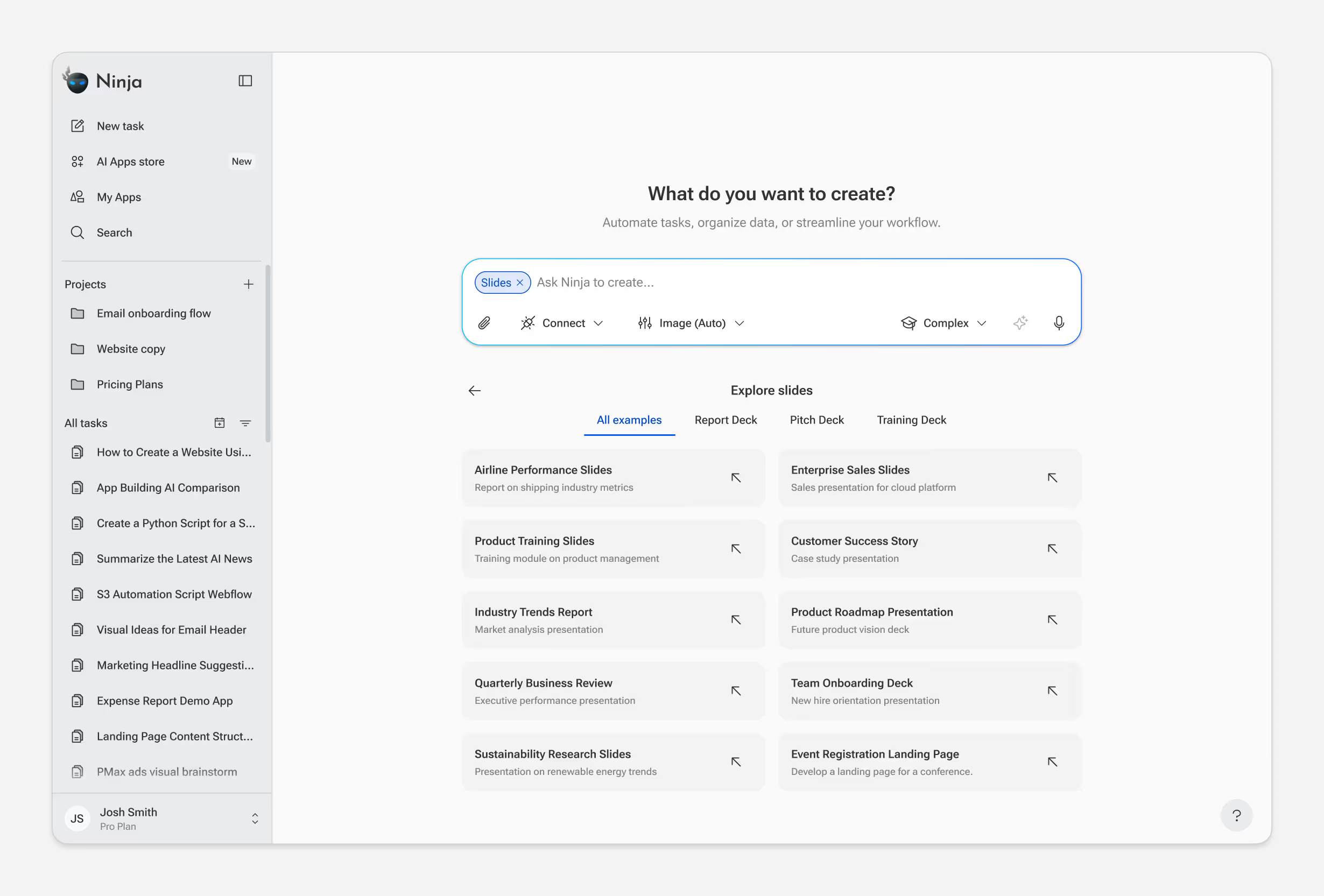
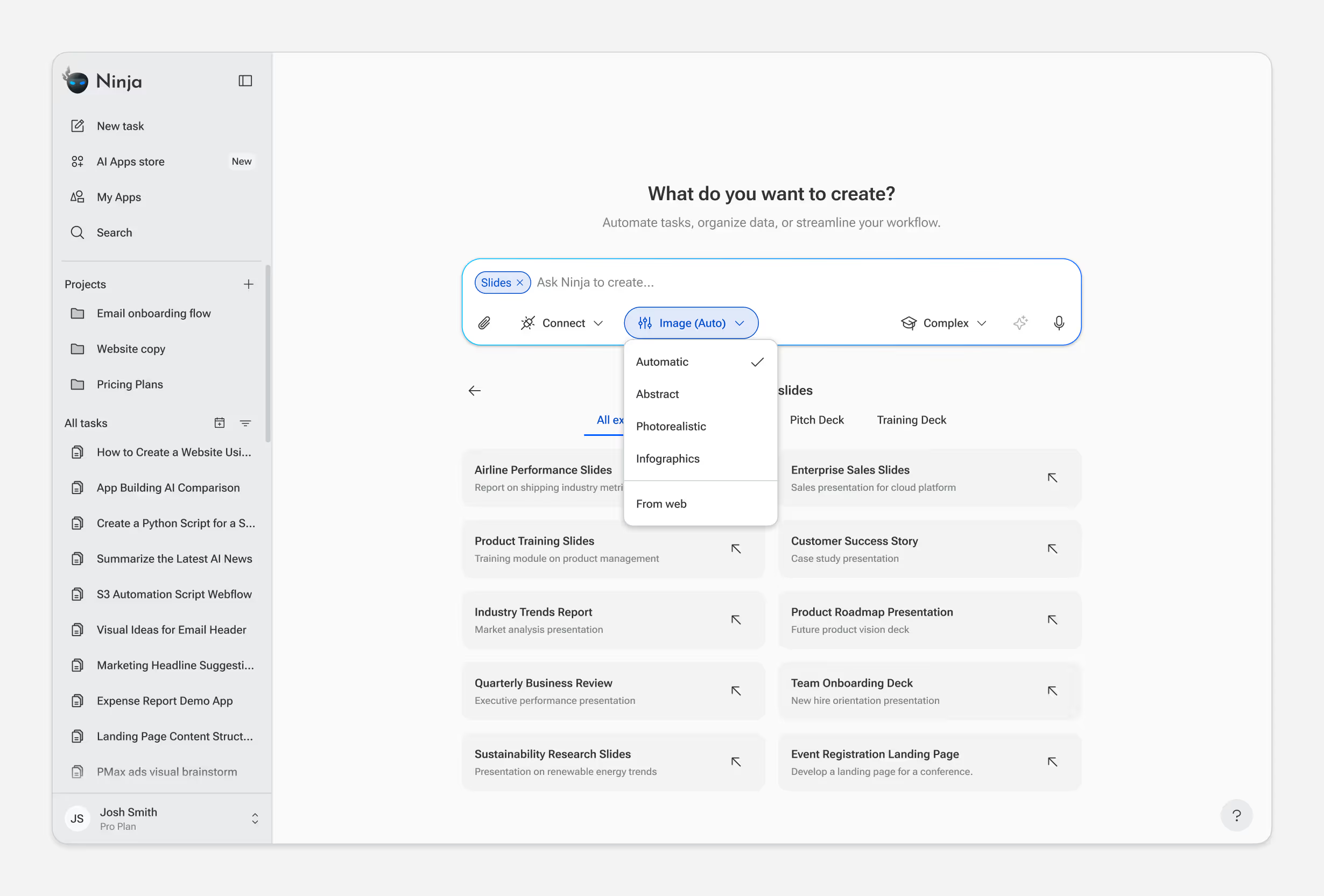
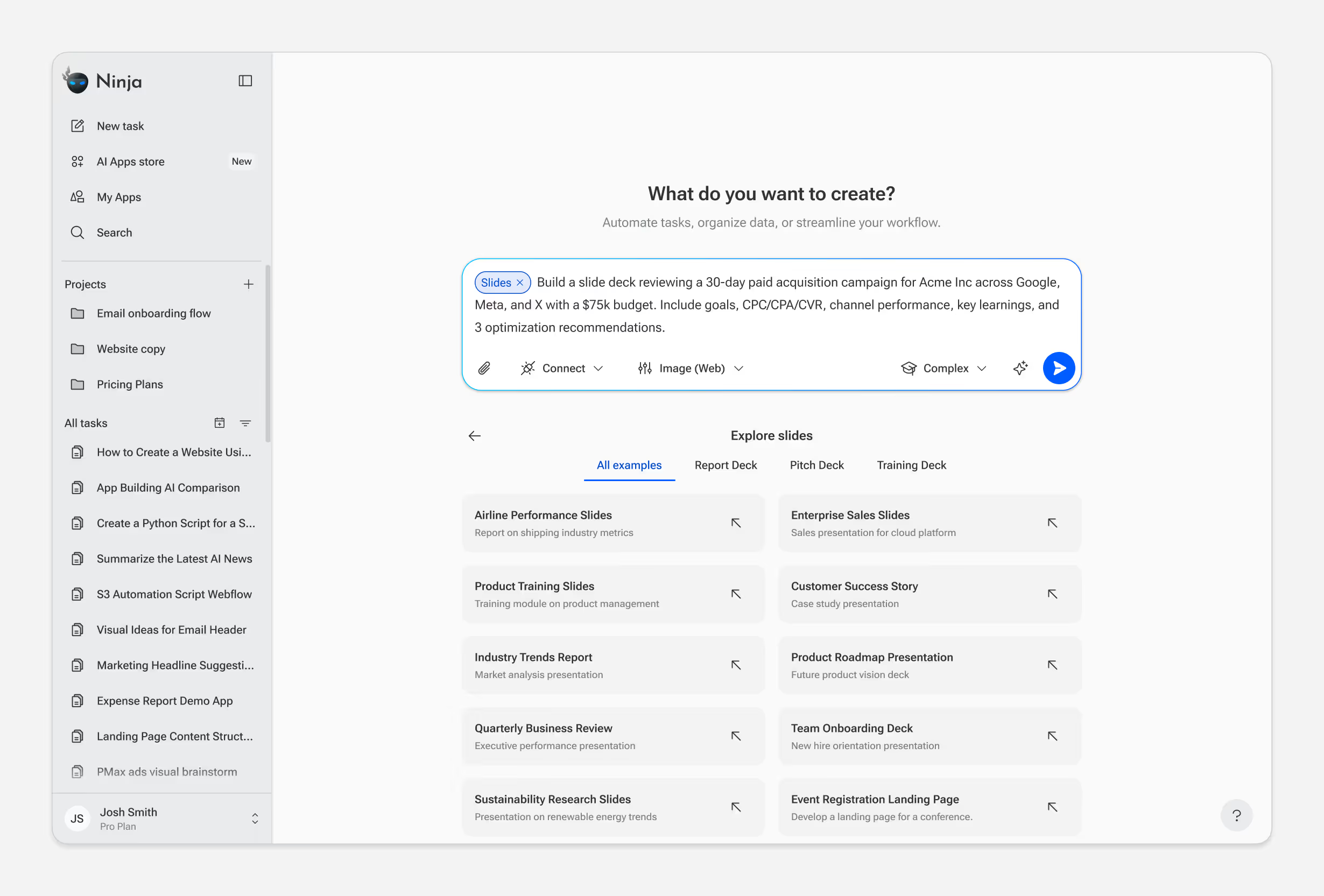
Prompt Input & Mode Selection

Every interaction starts with a prompt — but not all tasks are equal. Users can choose between Fast, Standard, and Complex modes or any AI model depending on the skill selected and their needs.

The design question: how do we expose this choice without adding friction? Early versions required users to select a mode before typing. But most users didn't know which mode they needed until they described their task. We moved mode selection to a secondary position, letting users type first and adjust if needed. Default mode handles 80% of cases; power users can override.
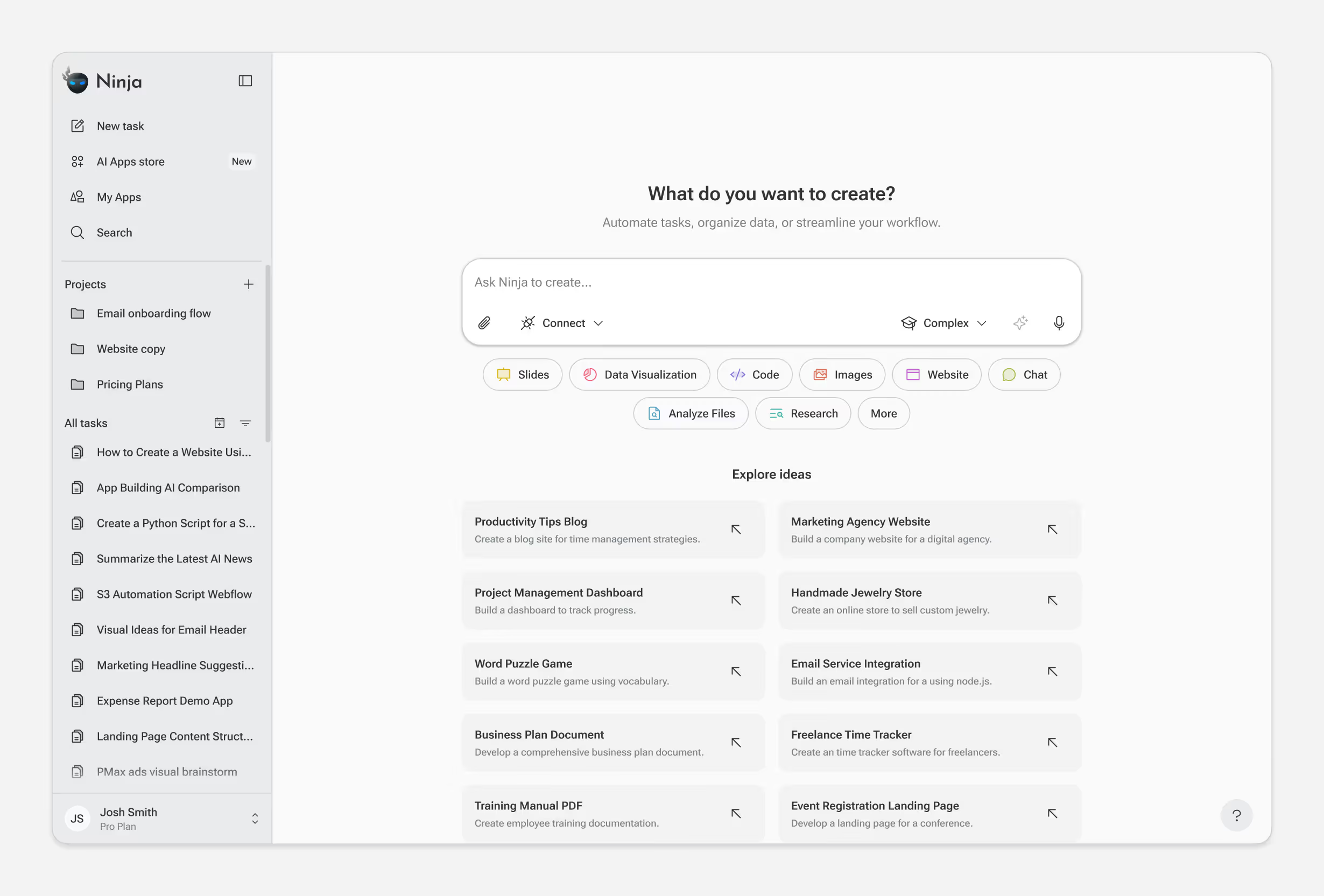
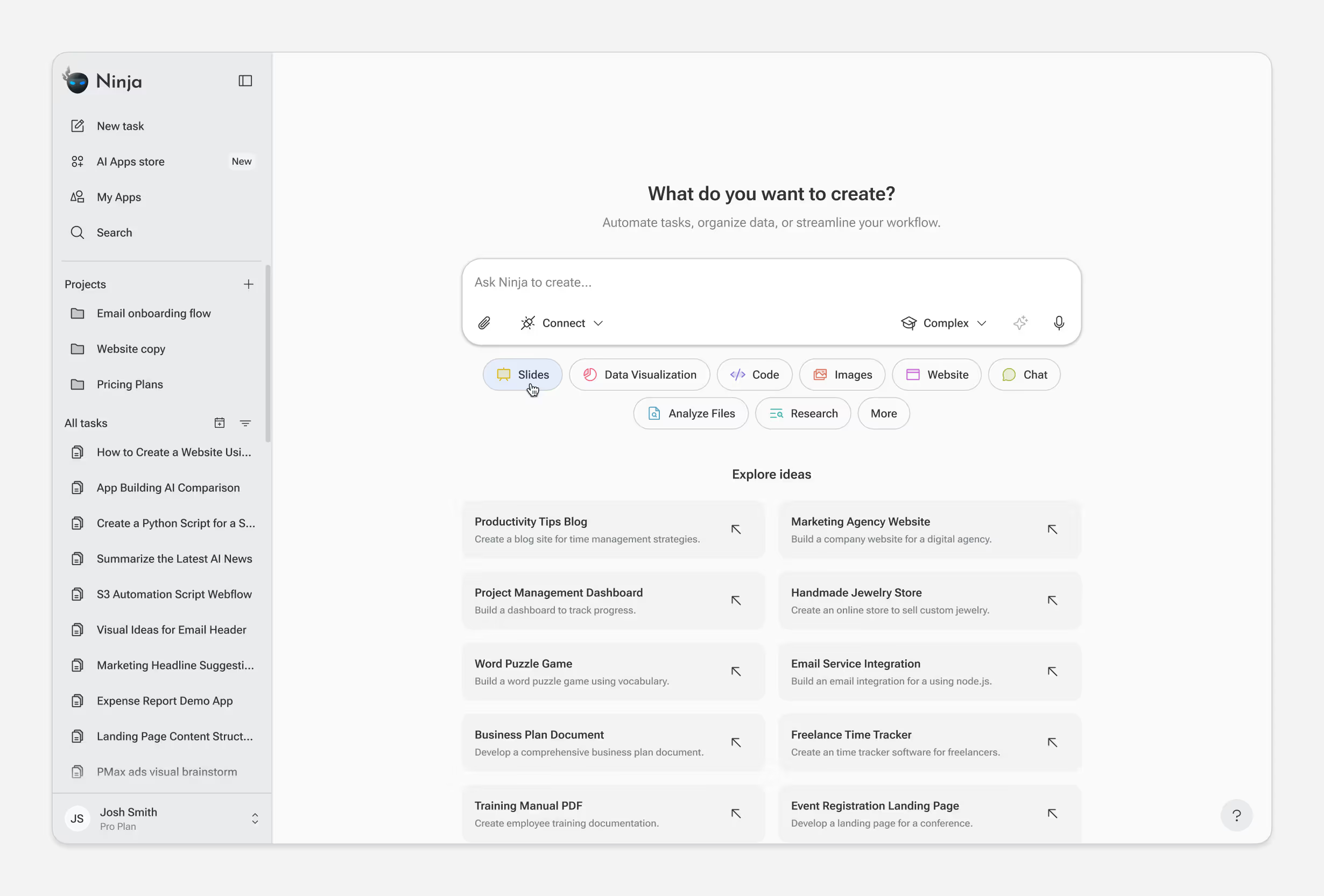
Ninja app interface showing task creation options, project lists, and AI-powered content types like Slides, Code, Images, and Website.Ninja app interface showing a prompt input box with options for creating slides, data visualization, code, images, website, chat, file analysis, research, and more, alongside a sidebar with projects and tasks.User interface of Ninja app showing prompt input for creating slides and a list of slide templates like Airline Performance, Enterprise Sales, Product Training, and Customer Success Story.User interface of Ninja app showing a project and task sidebar on the left, and a main panel with prompt input for creating slides with options to select image auto mode and complexity.Ninja app interface showing a prompt to create a slide deck for a 30-day paid acquisition campaign with options to connect, select image type, and set complexity, alongside a sidebar with tasks and projects and a section to explore various slide templates.

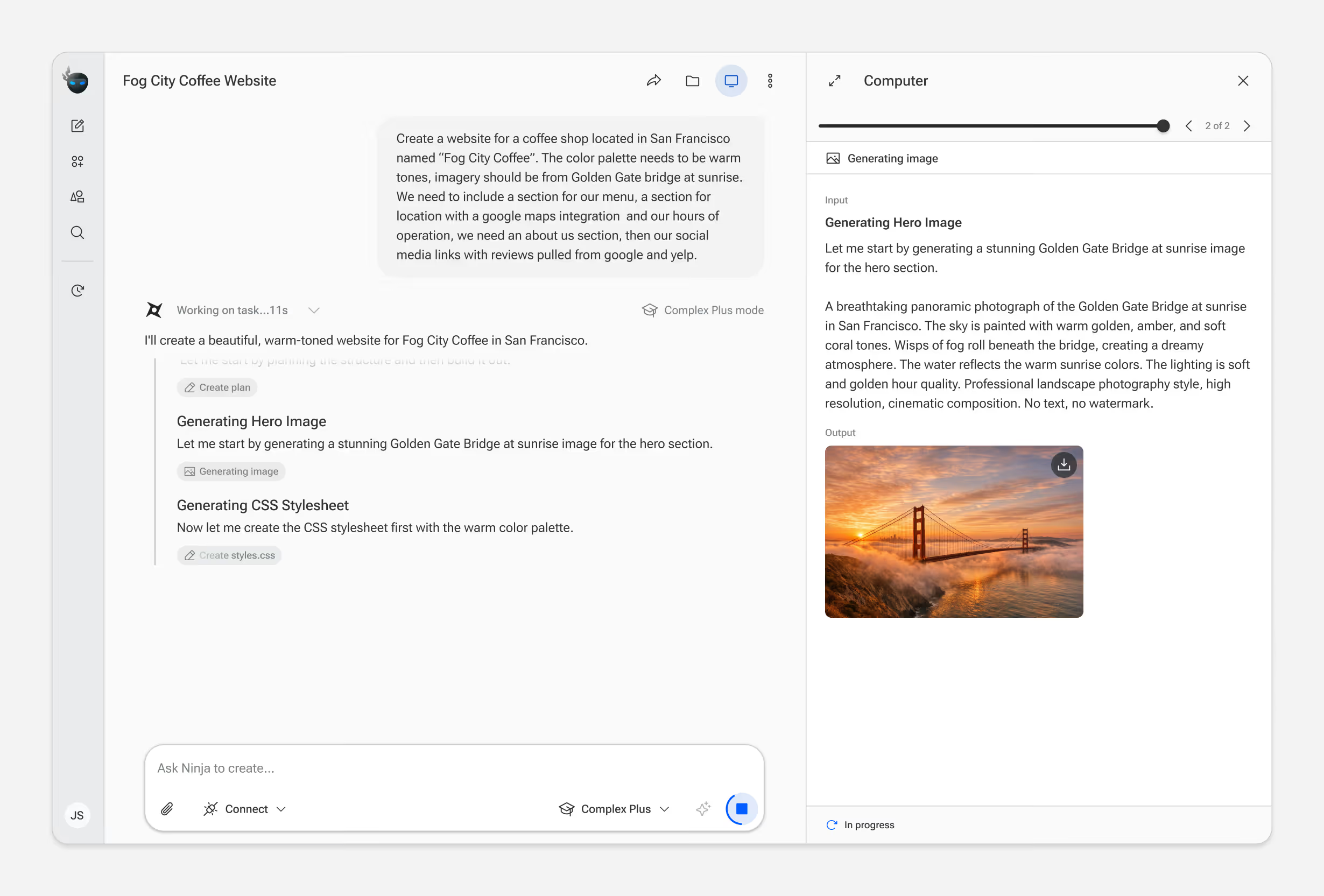
Virtual Computer View

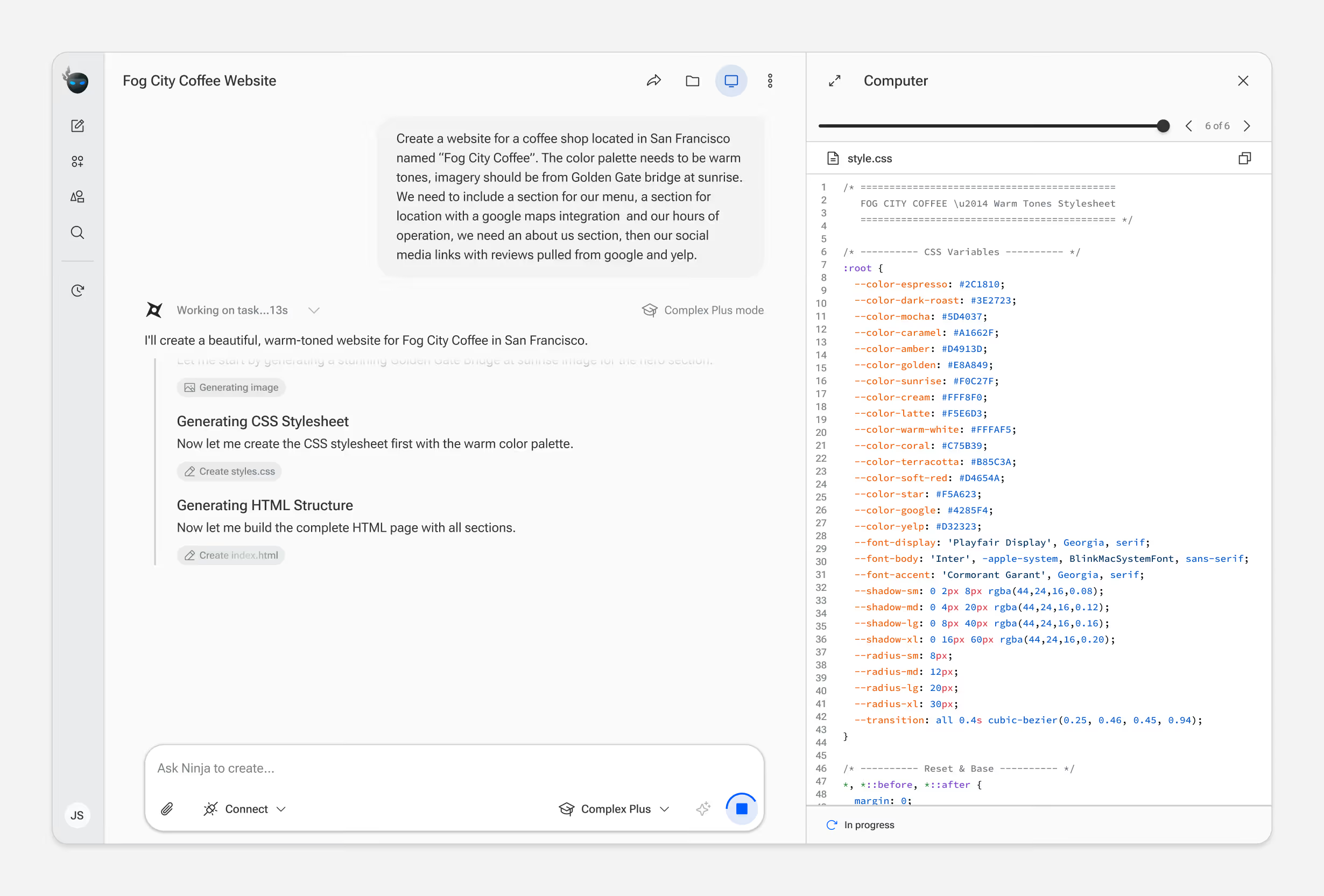
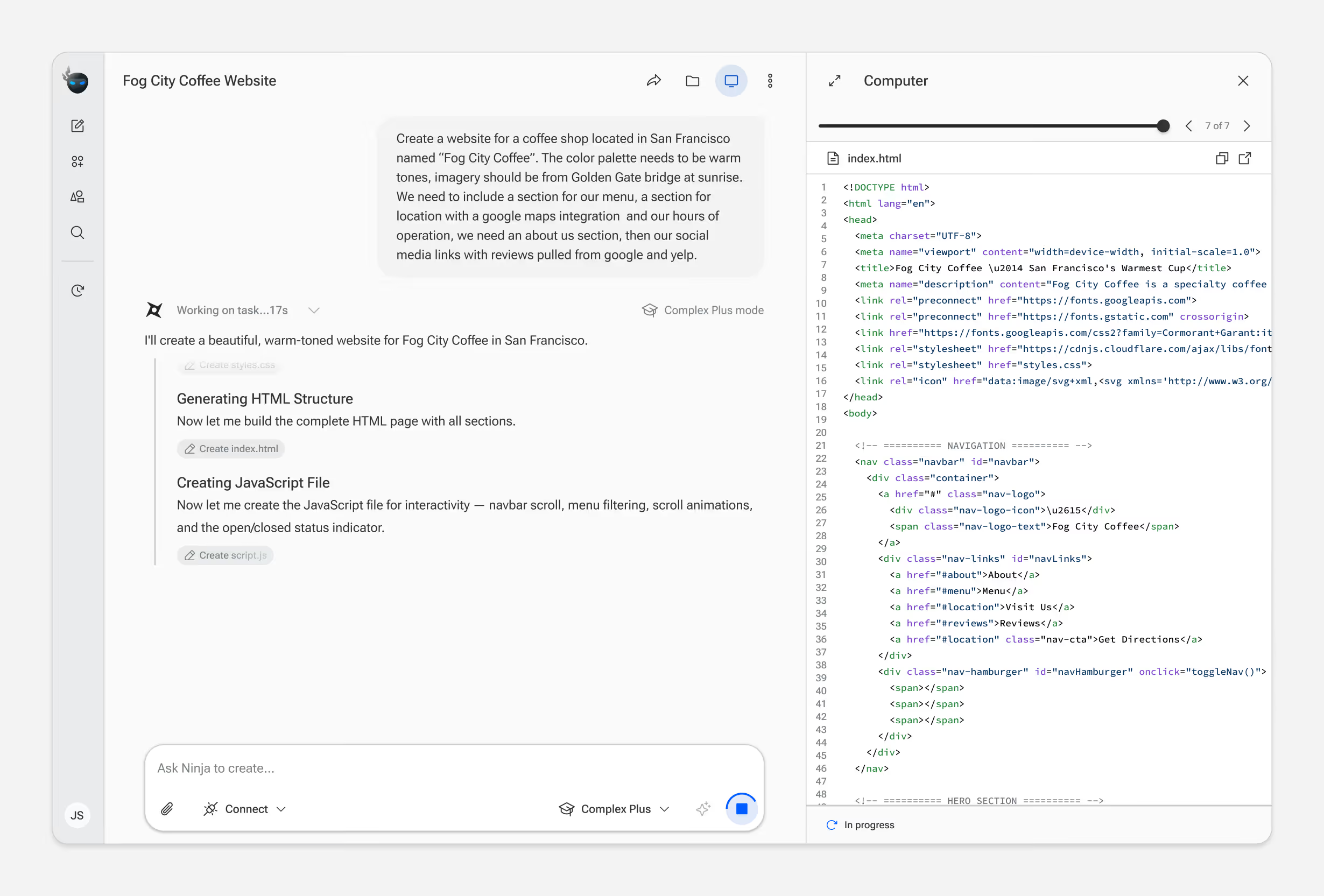
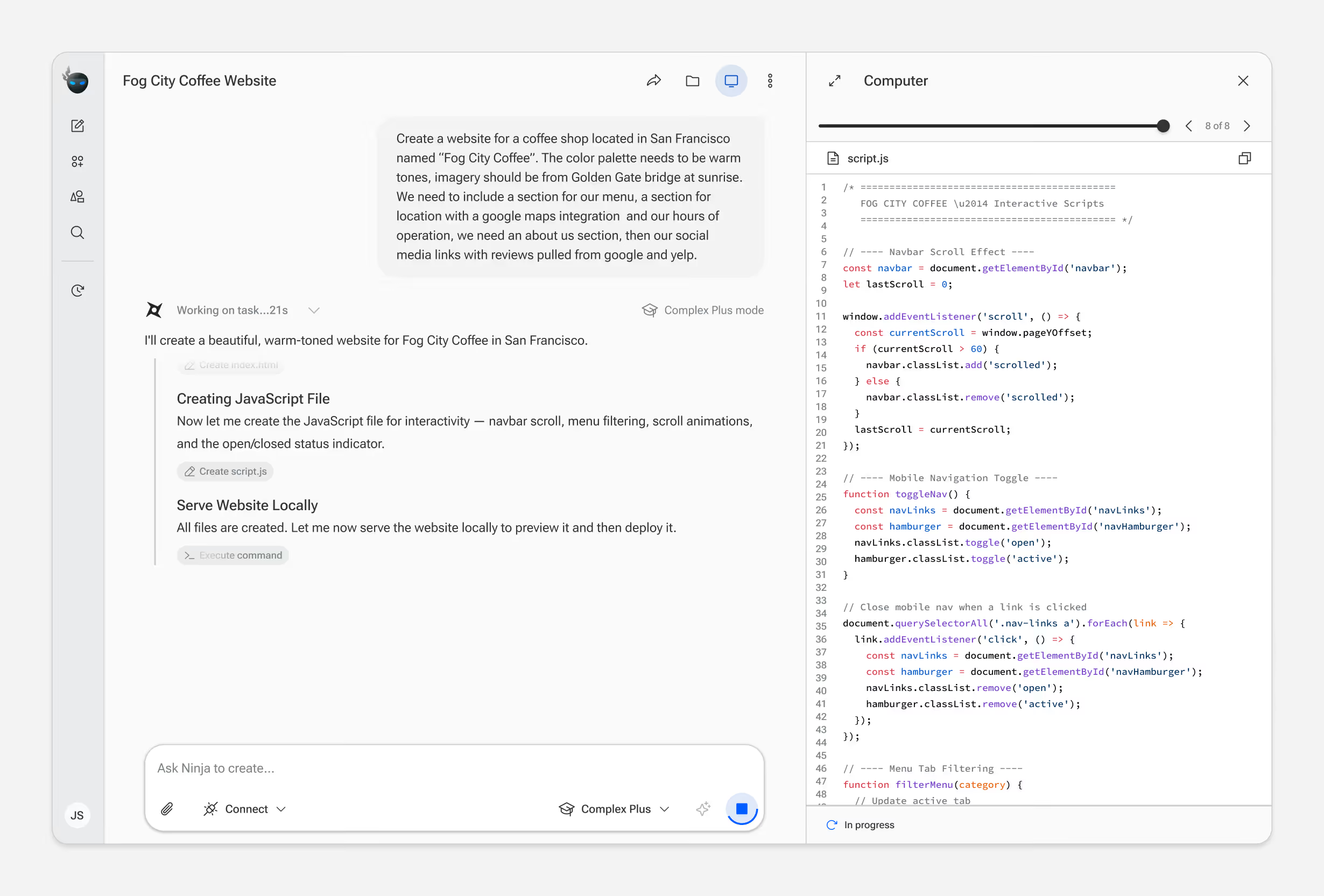
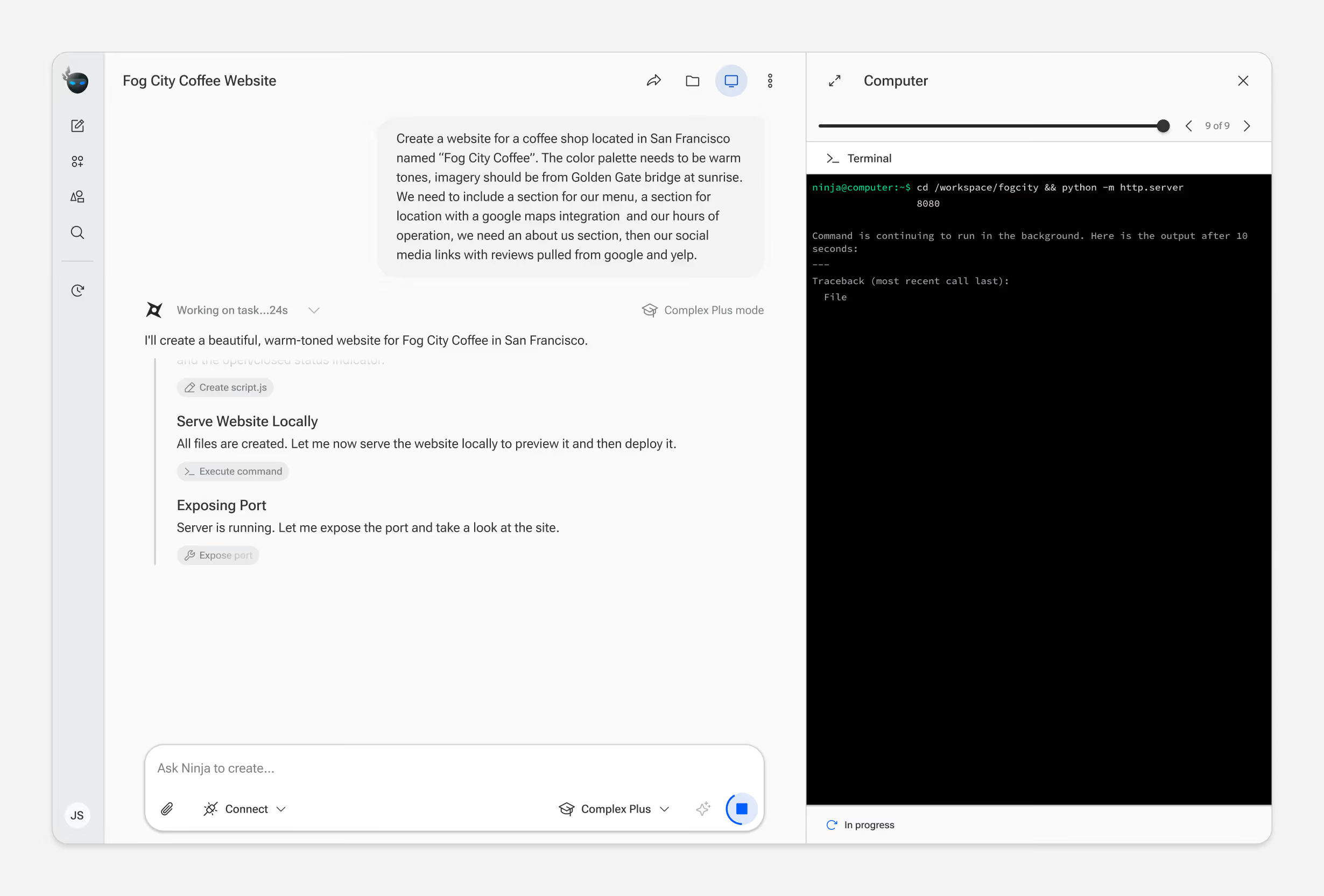
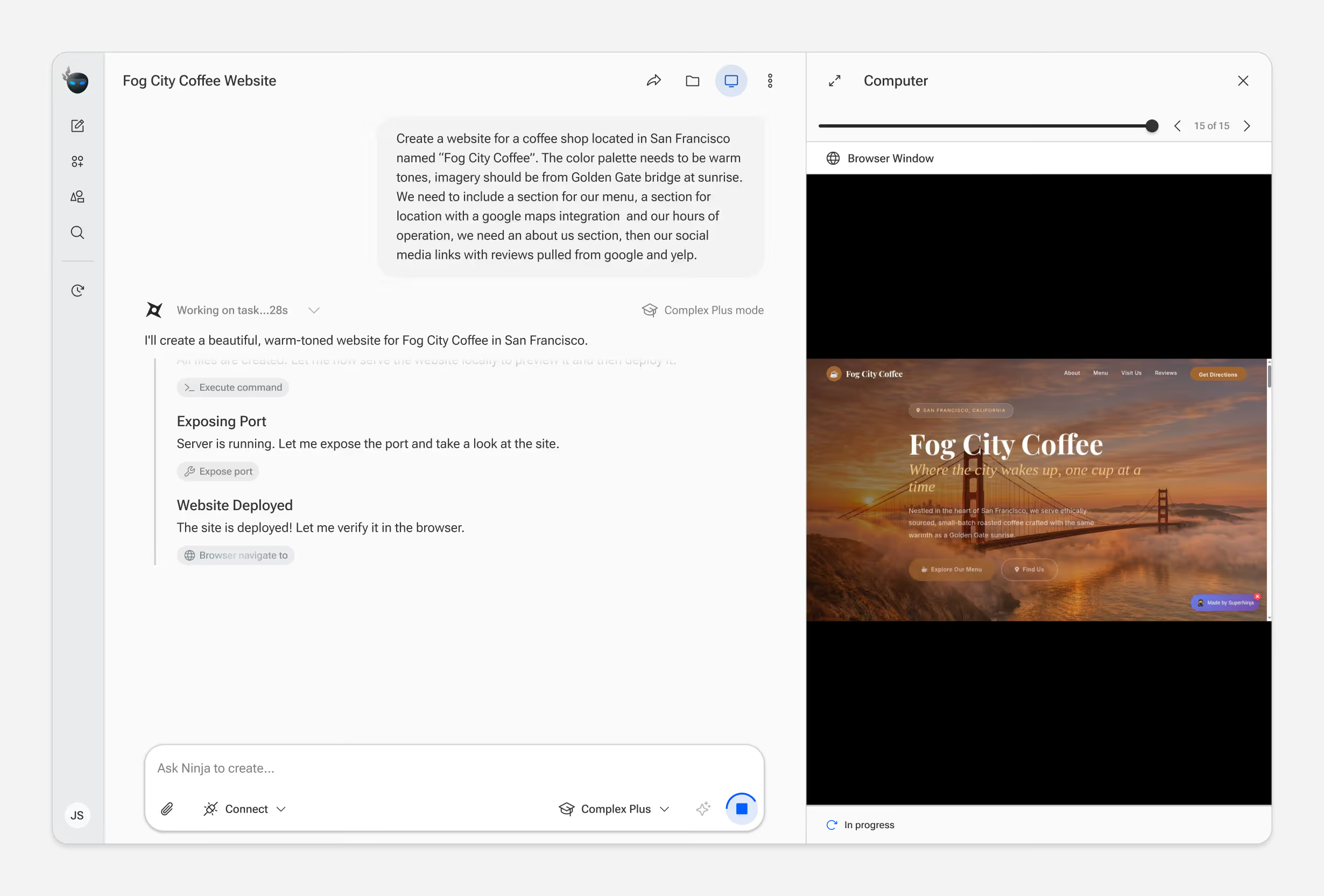
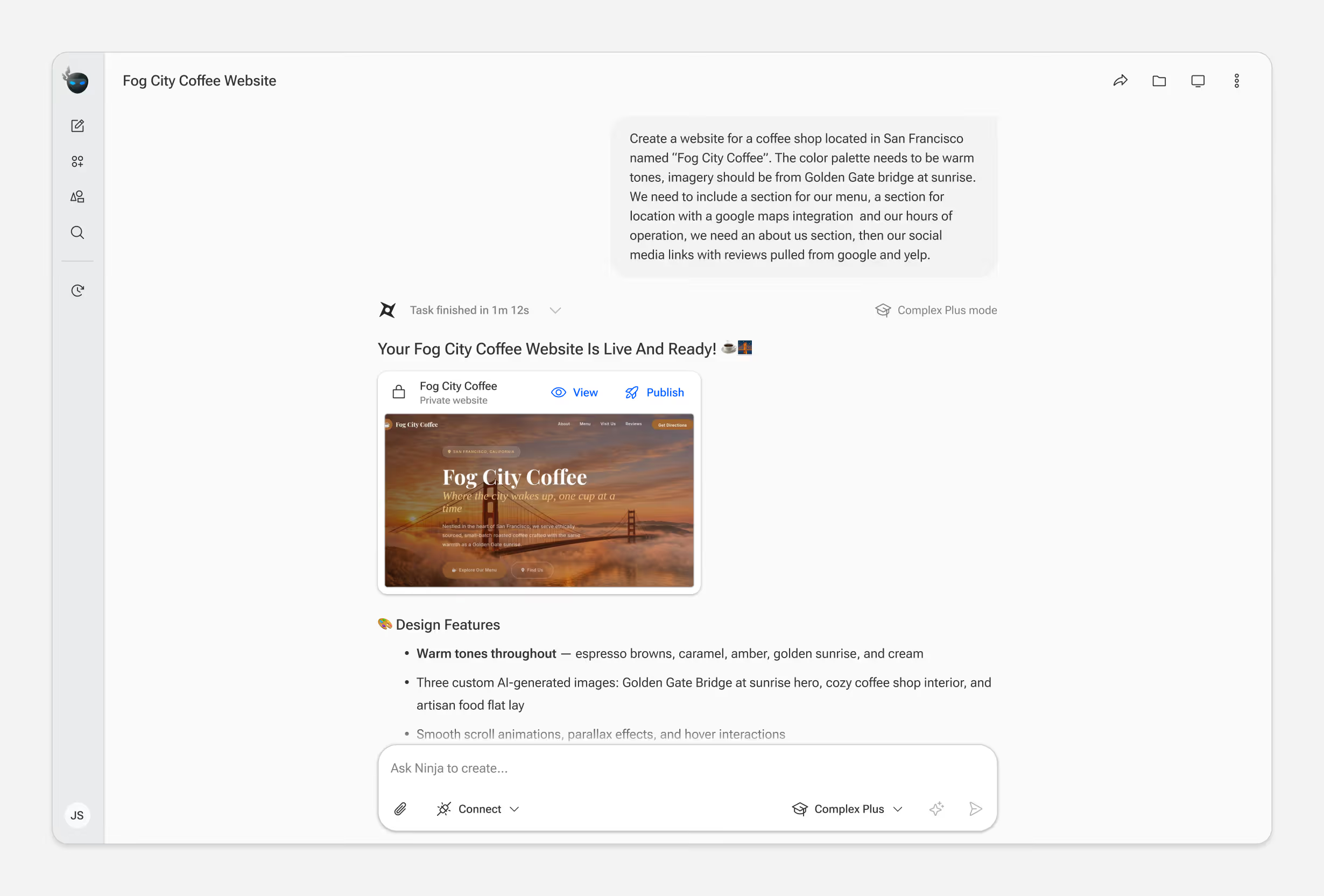
Unlike chat-based AI tools, every SuperNinja task runs in a real virtual machine. Users can watch the agent browse, code, and execute commands in real time.

This transparency was a core product decision — it builds trust. But showing everything risks overwhelming users who don't need that detail. We landed on a layered approach: a summarized status bar by default, with the option to expand into the full VM view.
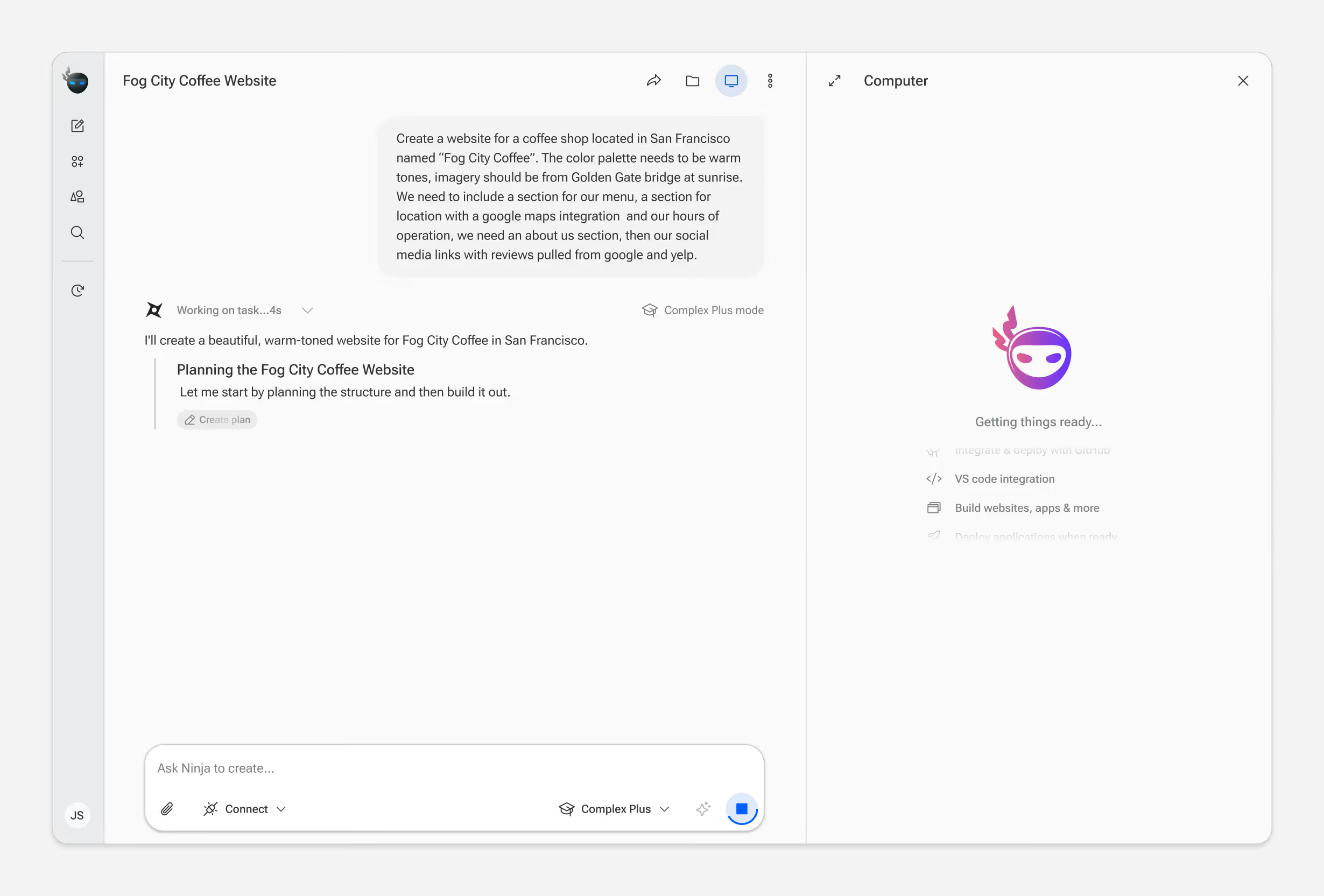
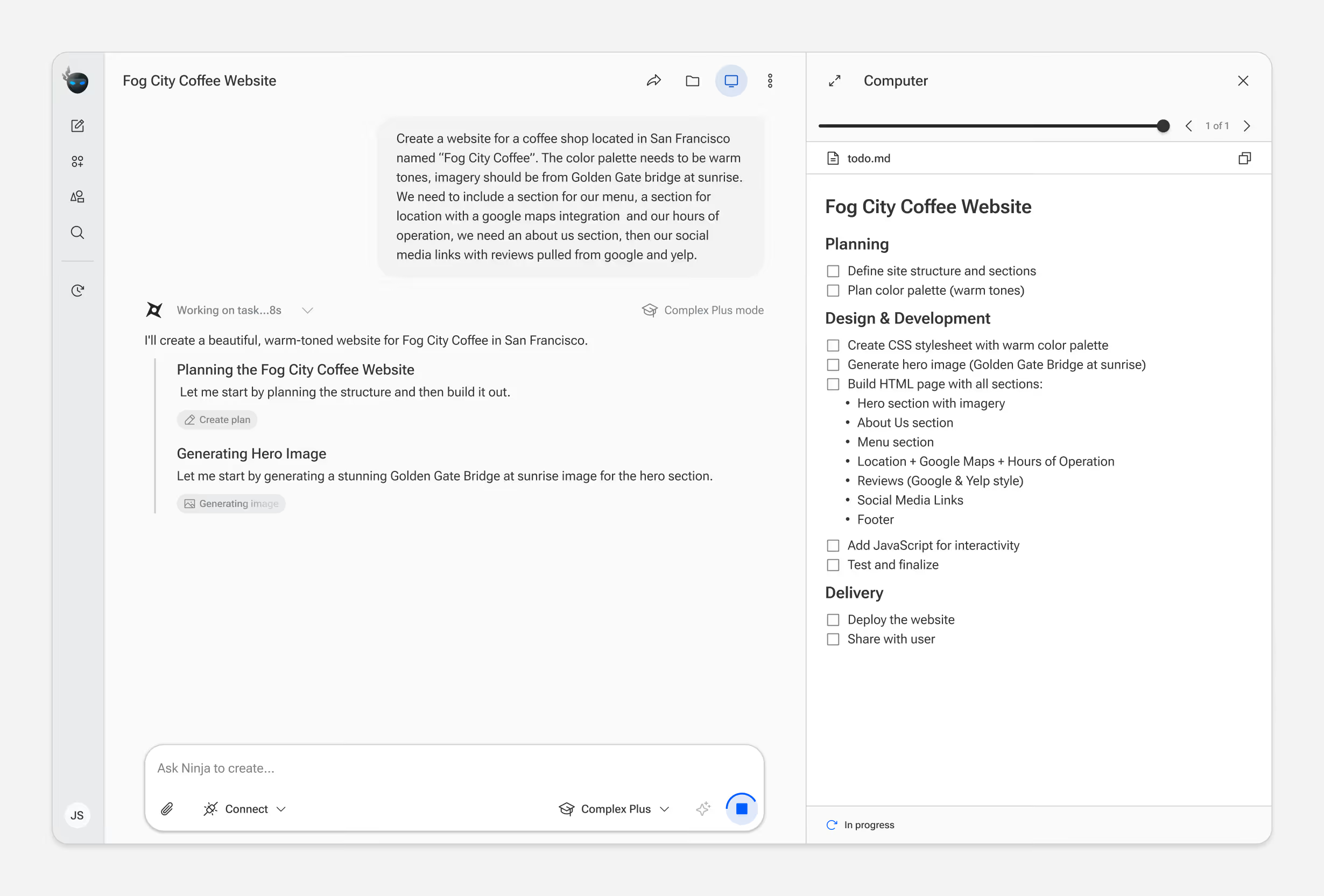
User interface of a virtual assistant planning a coffee shop website named Fog City Coffee with warm tones and Golden Gate Bridge imagery, showing task progress and features like VS code integration.User interface screen showing a chat assistant planning and generating a warm-toned website for Fog City Coffee located in San Francisco, with a to-do list including site structure, warm color palette, hero image of Golden Gate Bridge at sunrise, menu, location with Google Maps, reviews, social media links, JavaScript interactivity, testing, deployment, and sharing.User interface for Fog City Coffee website project showing task progress on creating a warm-toned website with Golden Gate Bridge sunrise hero image and CSS stylesheet generation.Screenshot of a coding assistant interface creating a warm-toned Fog City Coffee website, showing a prompt, progress on CSS stylesheet with palette colors, and HTML structure generation.Split-screen interface showing a website design prompt for Fog City Coffee on the left and HTML code for the coffee shop website on the right.Screenshot of a coding environment with a project titled 'Fog City Coffee Website' showing a task description for creating a warm-toned coffee shop website and JavaScript code for navbar scroll and menu toggle.Screenshot of an AI interface creating a warm-toned website for Fog City Coffee with local server terminal running in the background.Screen showing a user interface for creating a warm-toned website for Fog City Coffee with a preview of the site featuring Golden Gate Bridge at sunrise.Screenshot of a web development interface showing a completed coffee shop website named 'Fog City Coffee' with warm tones, Golden Gate Bridge sunrise image, and design feature notes.

Connecting External Data

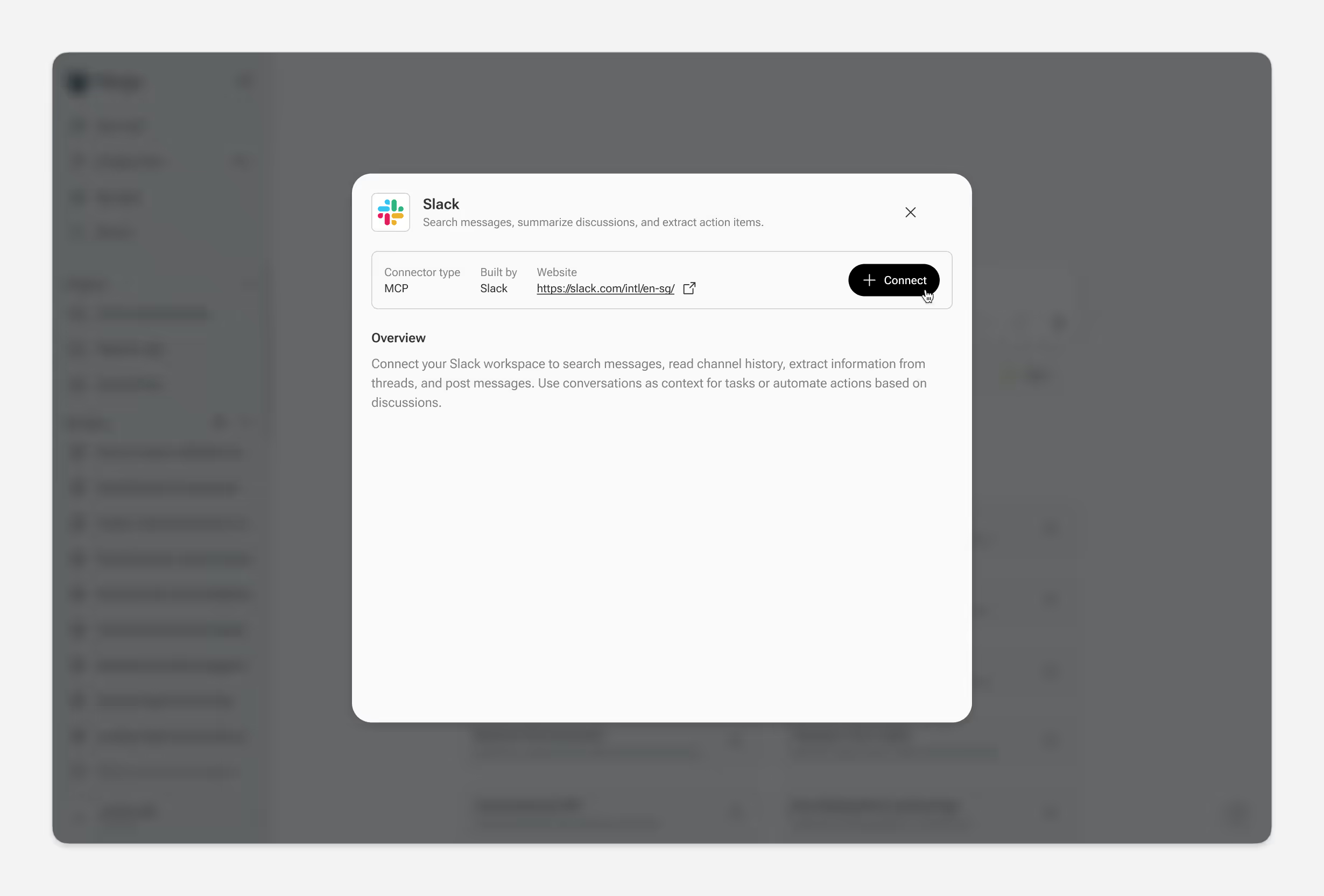
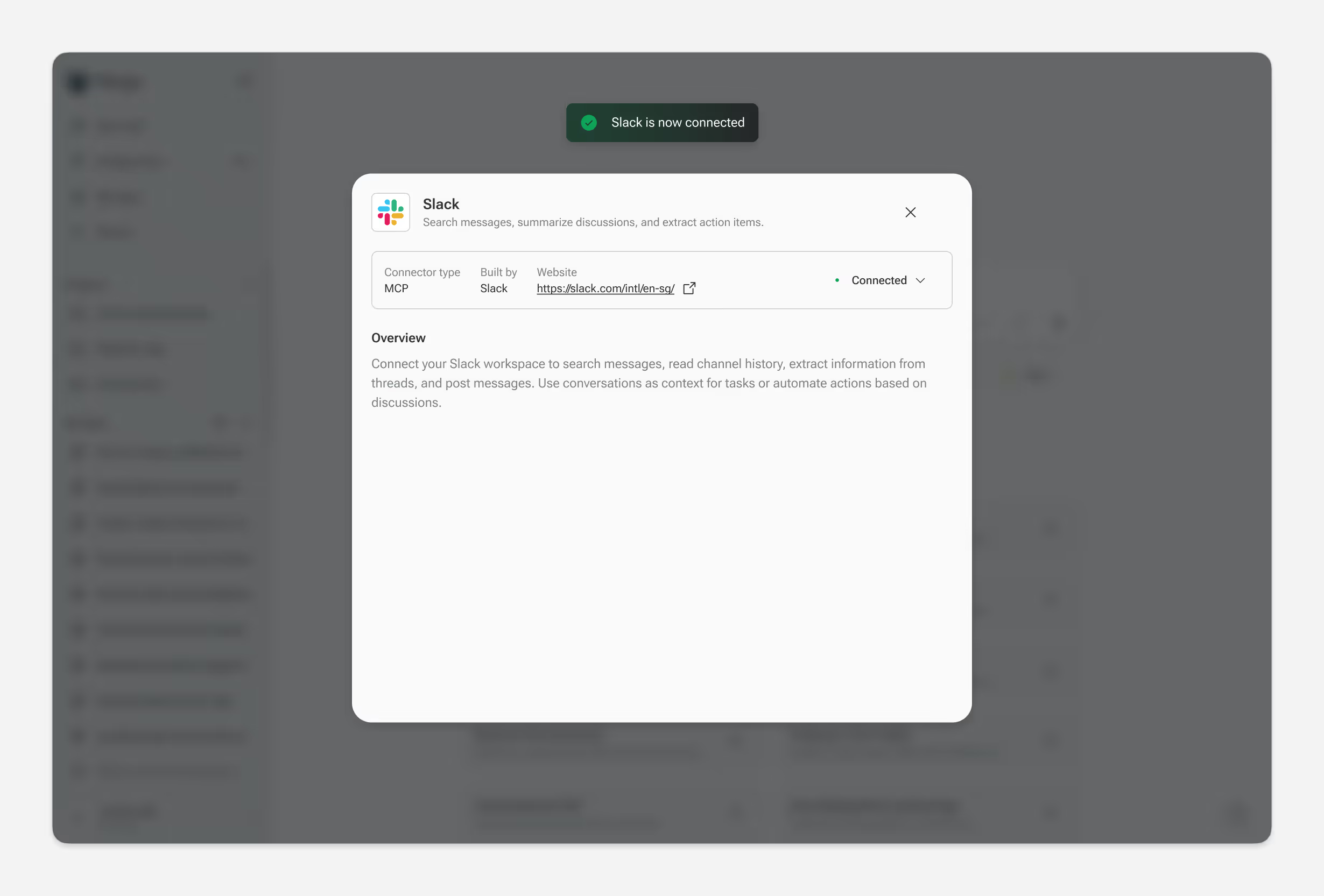
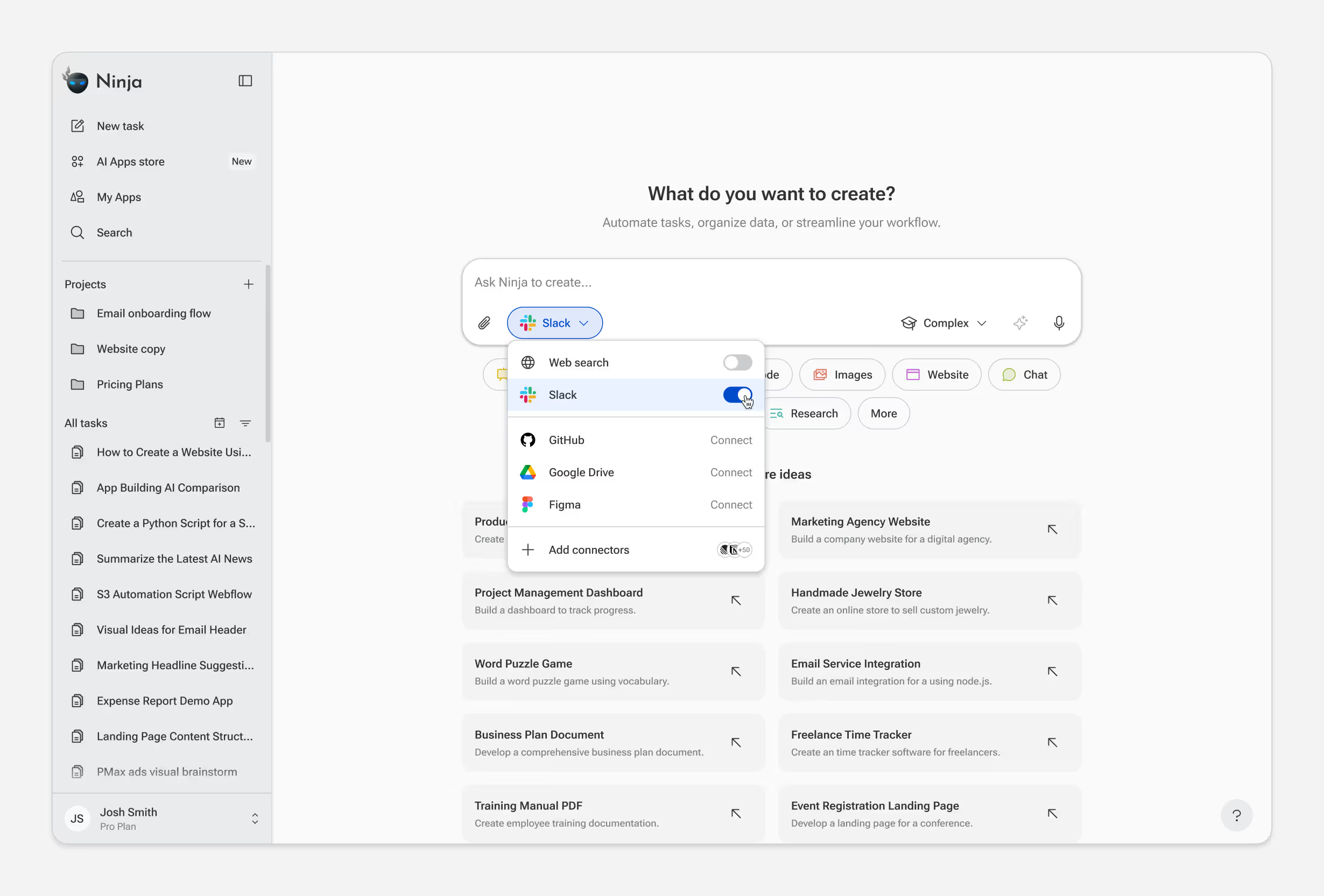
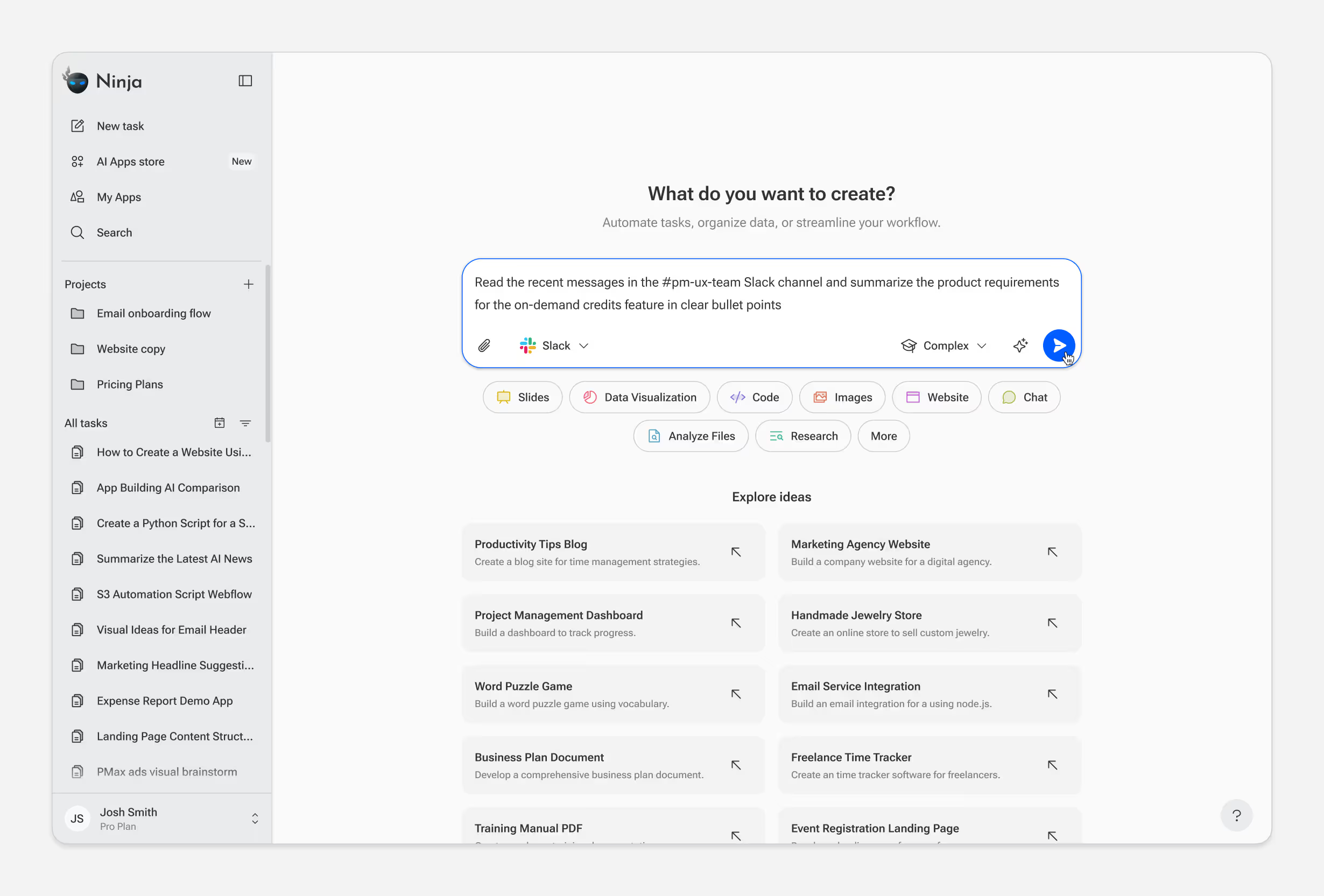
SuperNinja connects to external tools and data sources through MCP, GitHub, Slack, Google Drive, Notion, and more. Once connected, the agent can pull live data into tasks automatically.

The design challenge was making a technical capability feel effortless. Users browse available connectors, authenticate, and the source is available immediately. During task execution, an indicator shows which sources the agent accessed.
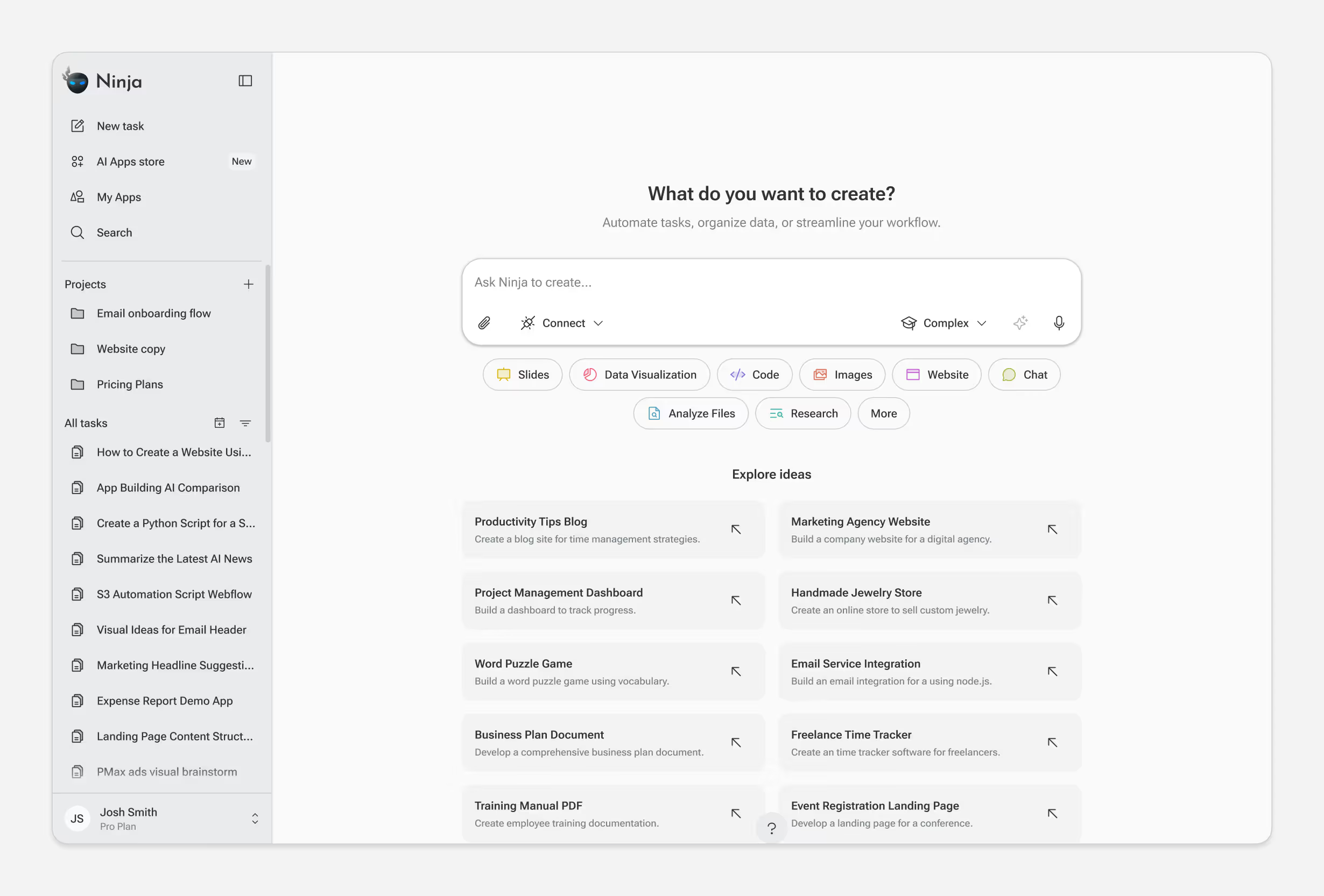
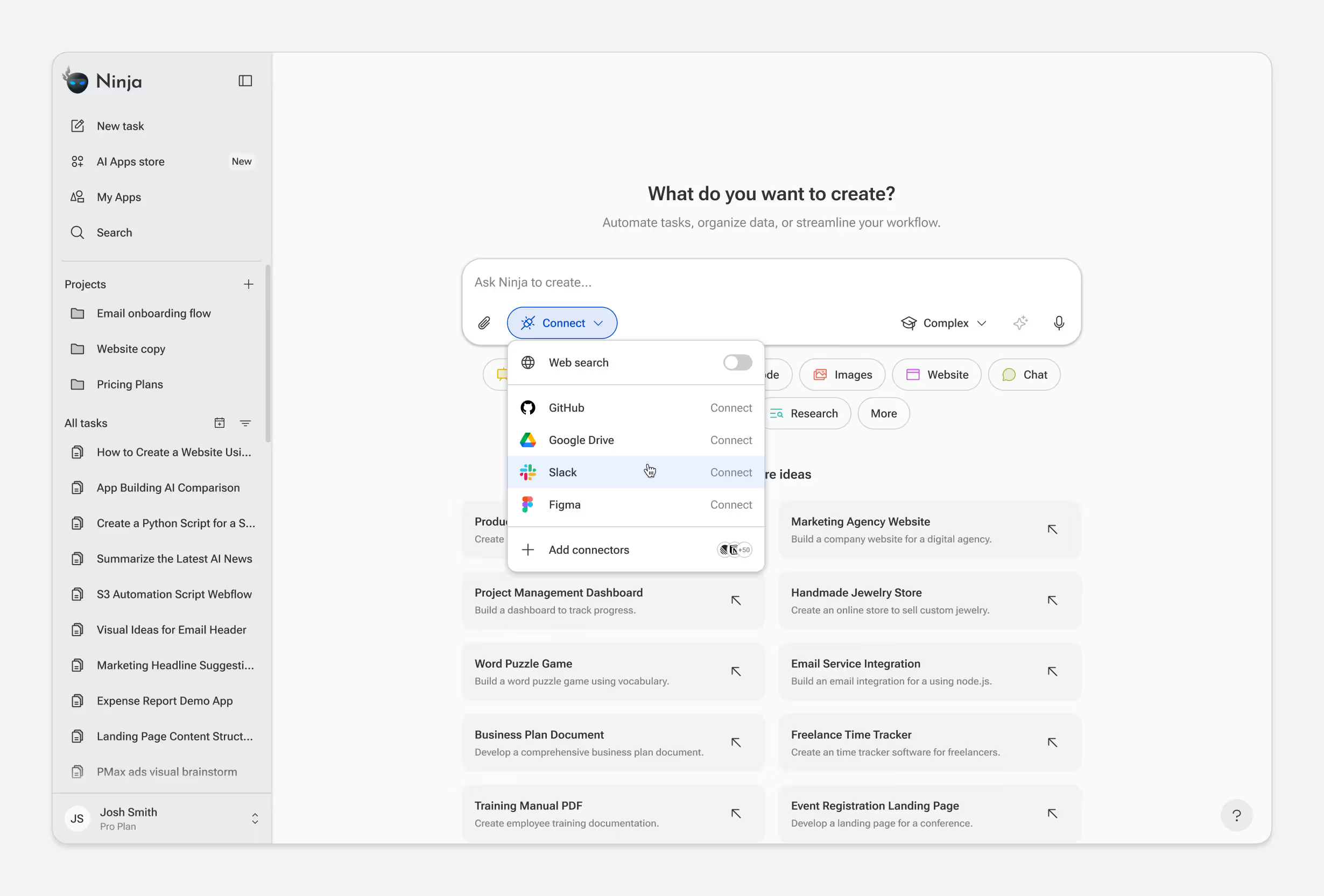
Ninja app interface with a sidebar showing projects and tasks, and a main area to create and explore tasks like blogs, websites, and dashboards.Ninja app interface showing a task creation area with options to connect services like GitHub, Google Drive, Slack, and Figma, plus a sidebar with projects and tasks listed.
Popup window showing Slack connector details with connector type MCP, built by Slack, website link, and a black Connect button.

* User authenticates with Slack
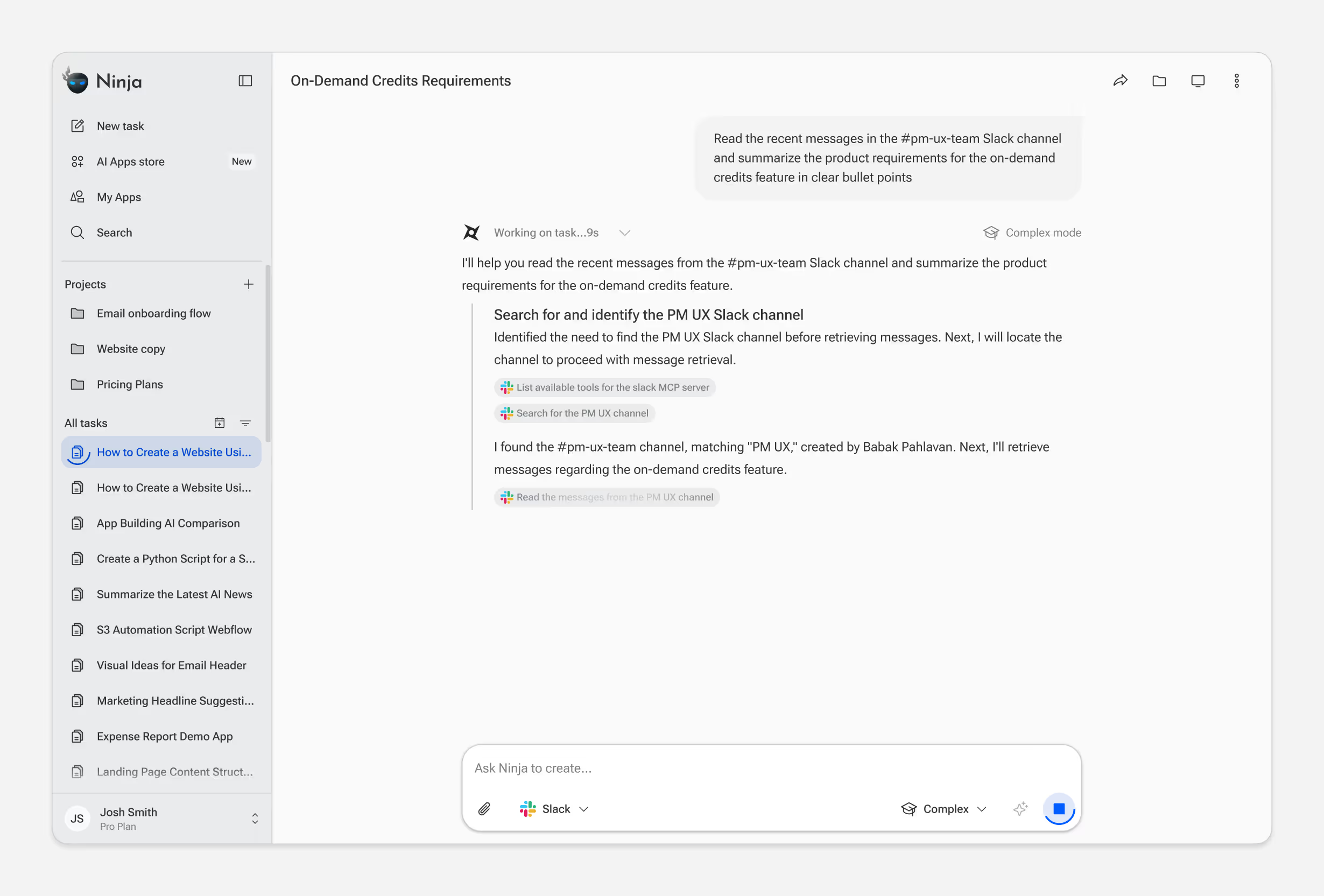
Slack external data connector setup screen showing connection status as connected with overview instructions for integrating Slack workspace to search messages and automate actions.User interface of Ninja app showing task creation with Slack connector enabled and a list of project and task names on the left sidebar.Ninja app interface showing a task creation input with a Slack integration prompt, complexity setting, and topic tags such as Slides, Code, and Website, alongside project and task lists on the left panel.Screenshot of Ninja app interface showing a task to summarize on-demand credits feature from the #pm-ux-team Slack channel with a list of projects and tasks on the left panel.

Iterations

MyNinja launched in May 2024 and transitioned the product to SuperNinja launched in June 2025. Since then, we've shipped continuous weekly updates based on usage data and user feedback.

Simplifying the Input

The input box is the primary interaction point — every task starts here. But users need to understand what's possible before they can ask for it.

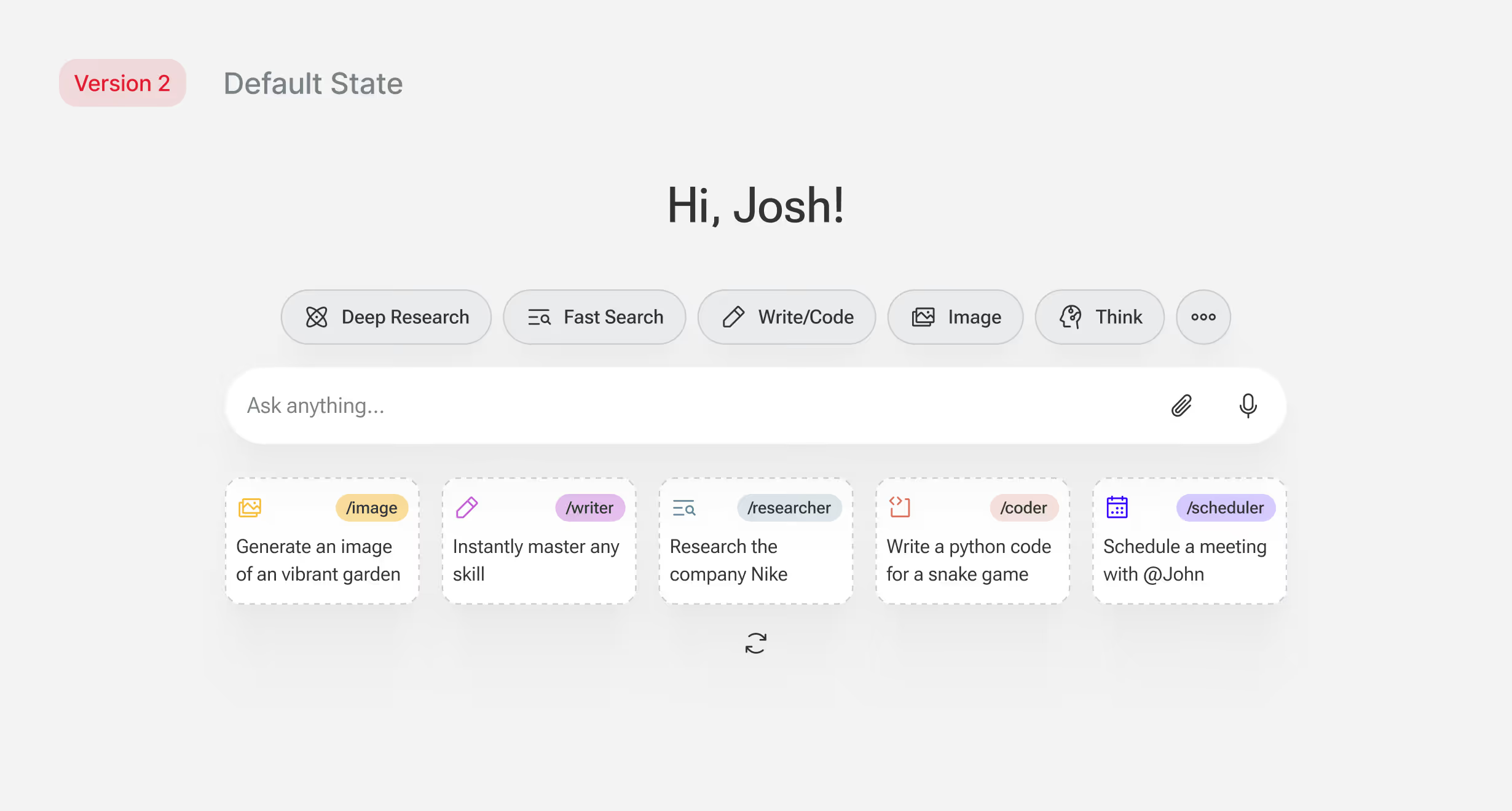
Early versions tried to solve this inside the input: a "/" command system, a Prompt Library button, utility features competing for attention and didn't scale well between screen sizes. Below the input was a row of example prompts but looking at usage data showed almost no one tried them.

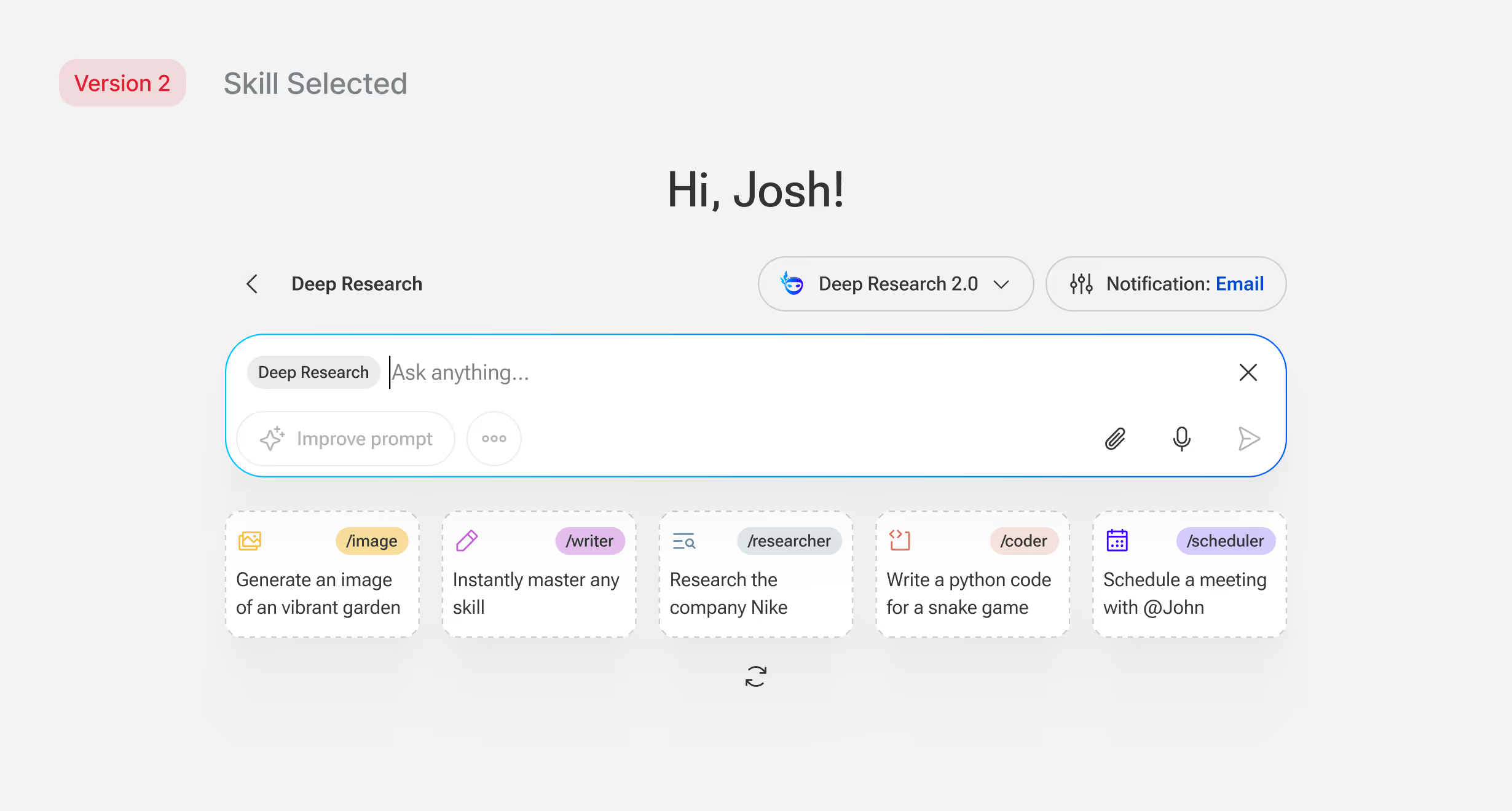
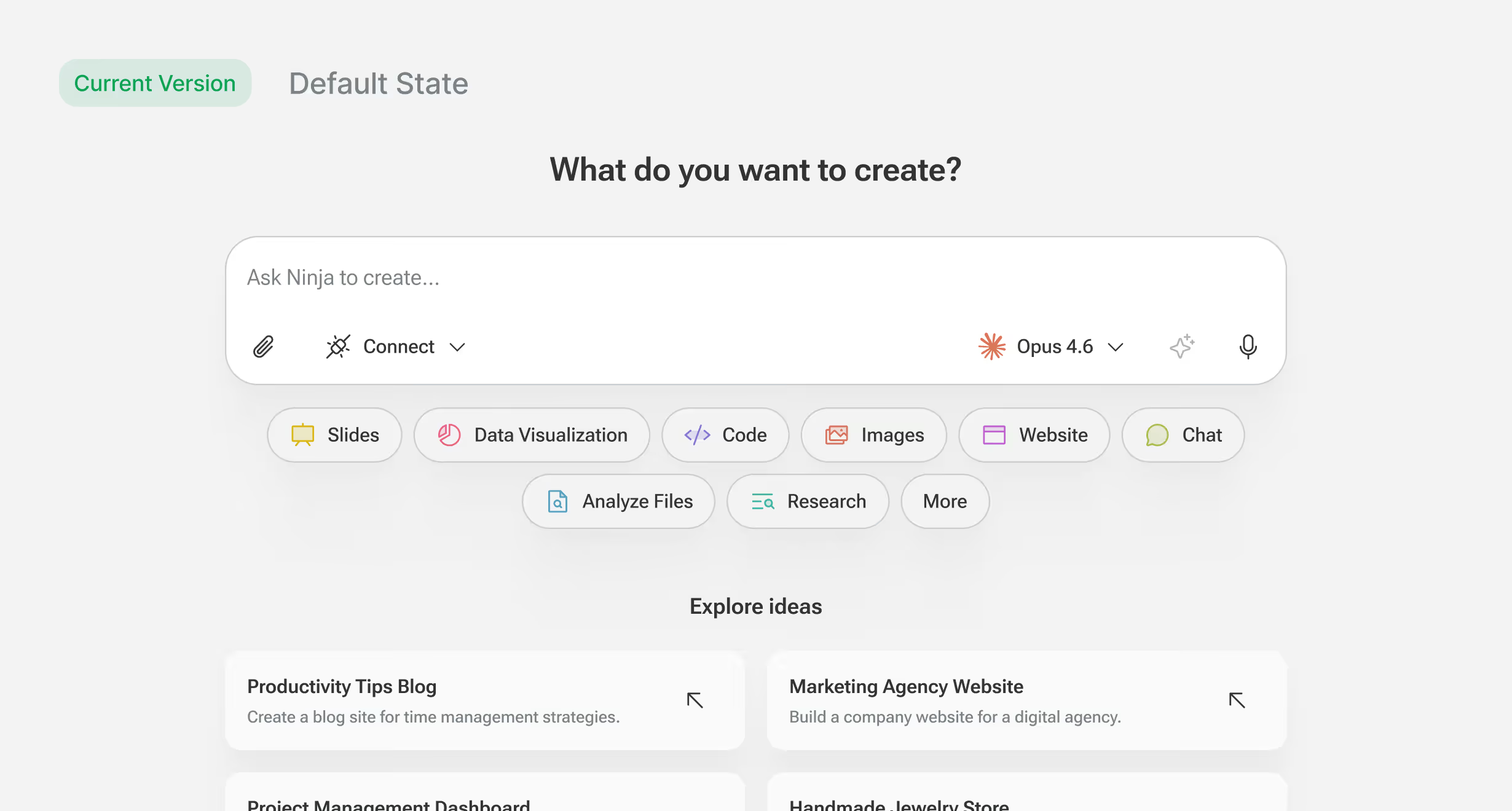
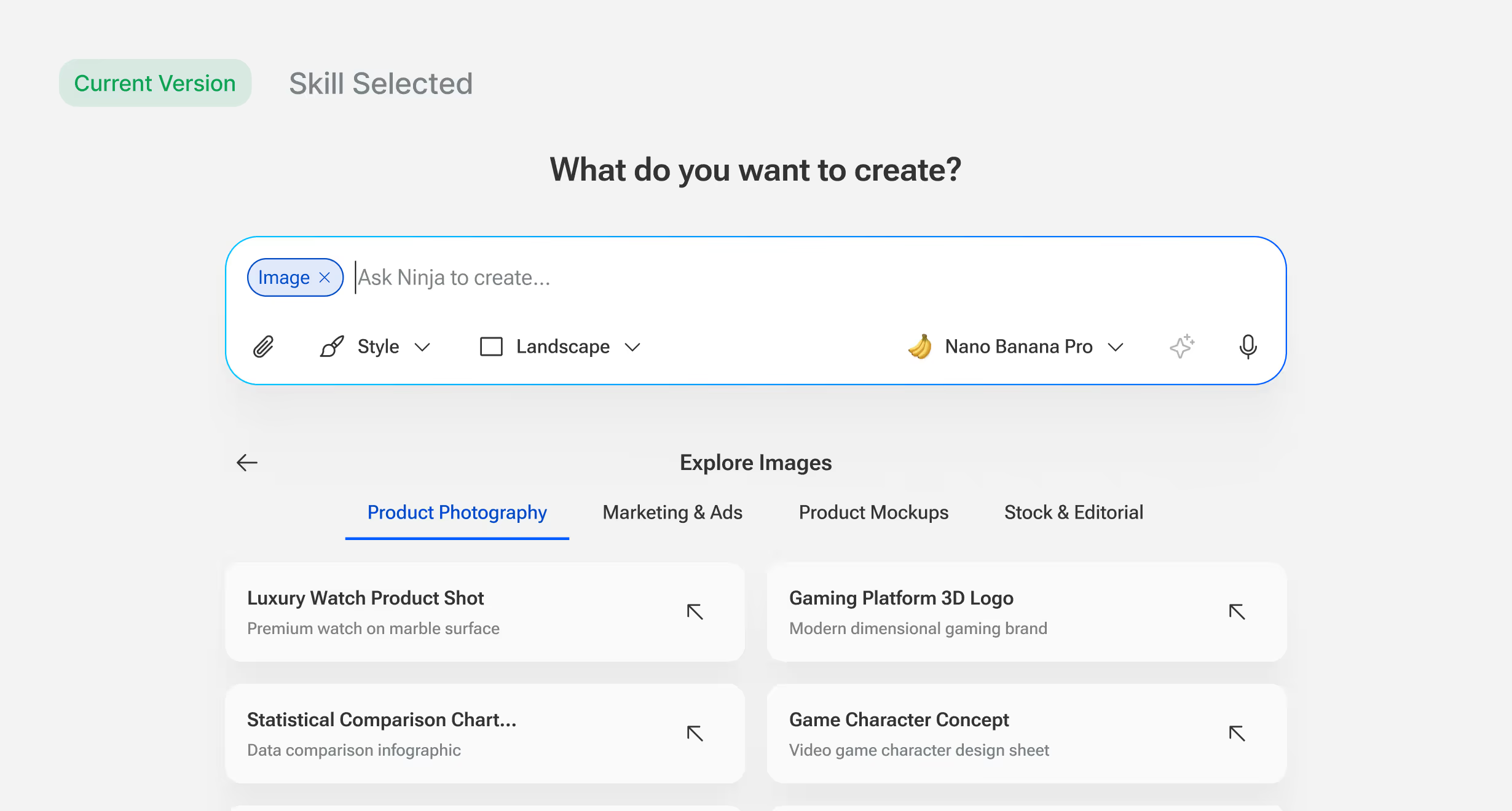
We restructured the approach. Skills like Slides, Code, Research, and Website now appear as chips below the input, immediately communicating what the agent can do. Each chip reveals example prompts for that skill, so users see concrete use cases before typing. The input itself became simpler: a text field with secondary controls for attachments, connections, and mode.

The change took unused space and turned it into a discovery surface. Example prompt usage increased 4-8x after the update.
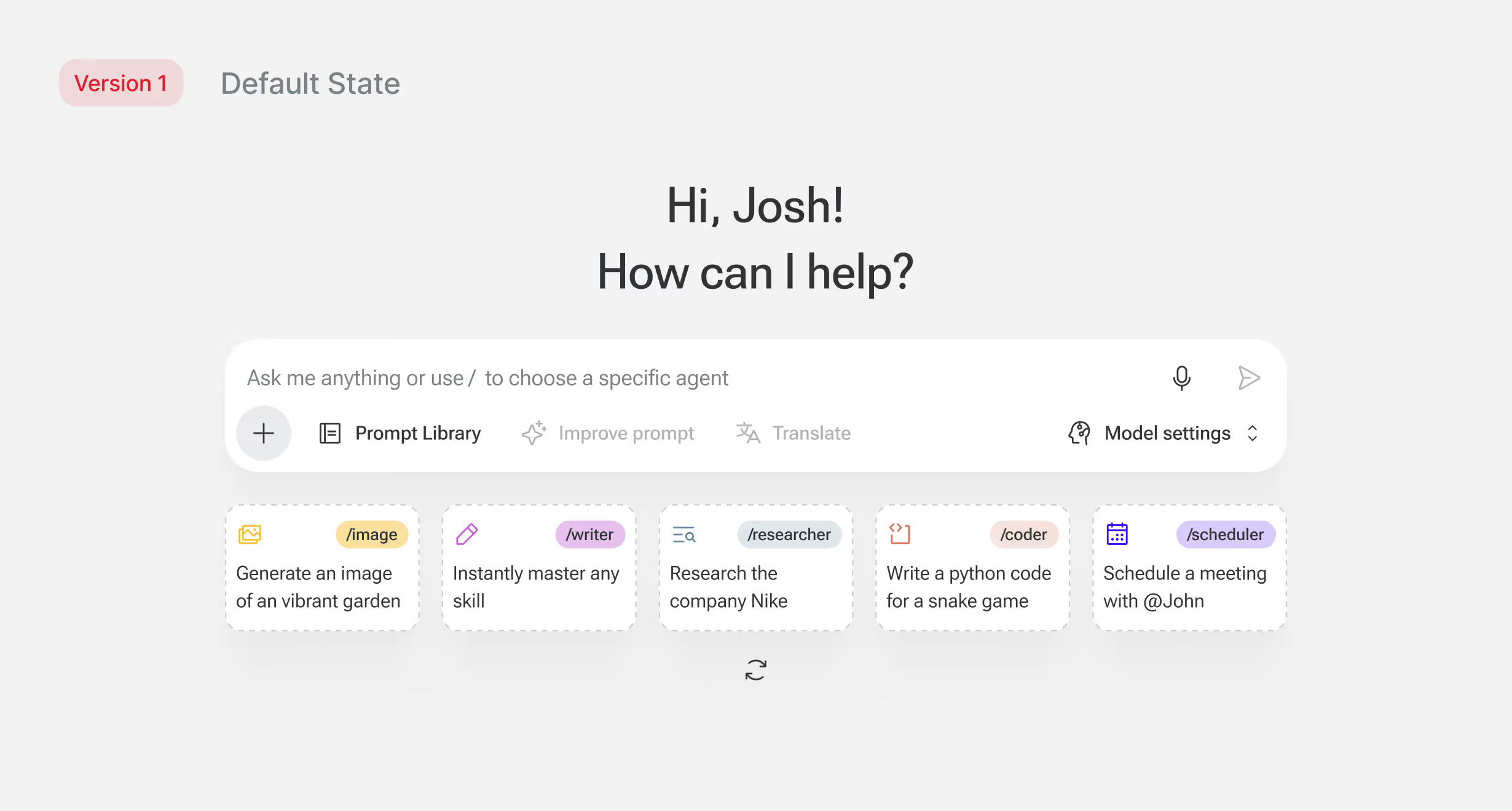
Chat interface greeting Josh with 'How can I help?' and options to generate an image, master a skill, research Nike, write python code, or schedule a meeting.AI interface greeting Josh with options for Deep Research, Fast Search, Write/Code, Image, and Think; input box and example commands like generating images, mastering skills, researching Nike, writing Python code, and scheduling meetings.User interface of an AI skill selection chat with a greeting to Josh, skill Deep Research selected, input box to ask questions, and options to generate image, master skill, research Nike, write python code, and schedule meetings.User interface displaying a prompt input box labeled 'Ask Ninja to create...' with options for Connect, Opus 4.6, and voice input, buttons for creating Slides, Data Visualization, Code, Images, Website, Chat, Analyze Files, Research, and More, and below it, example project ideas like Productivity Tips Blog and Marketing Agency Website.User interface for selecting image creation options with categories like Product Photography and options including Luxury Watch Product Shot and Gaming Platform 3D Logo.

Restructuring the Navigation

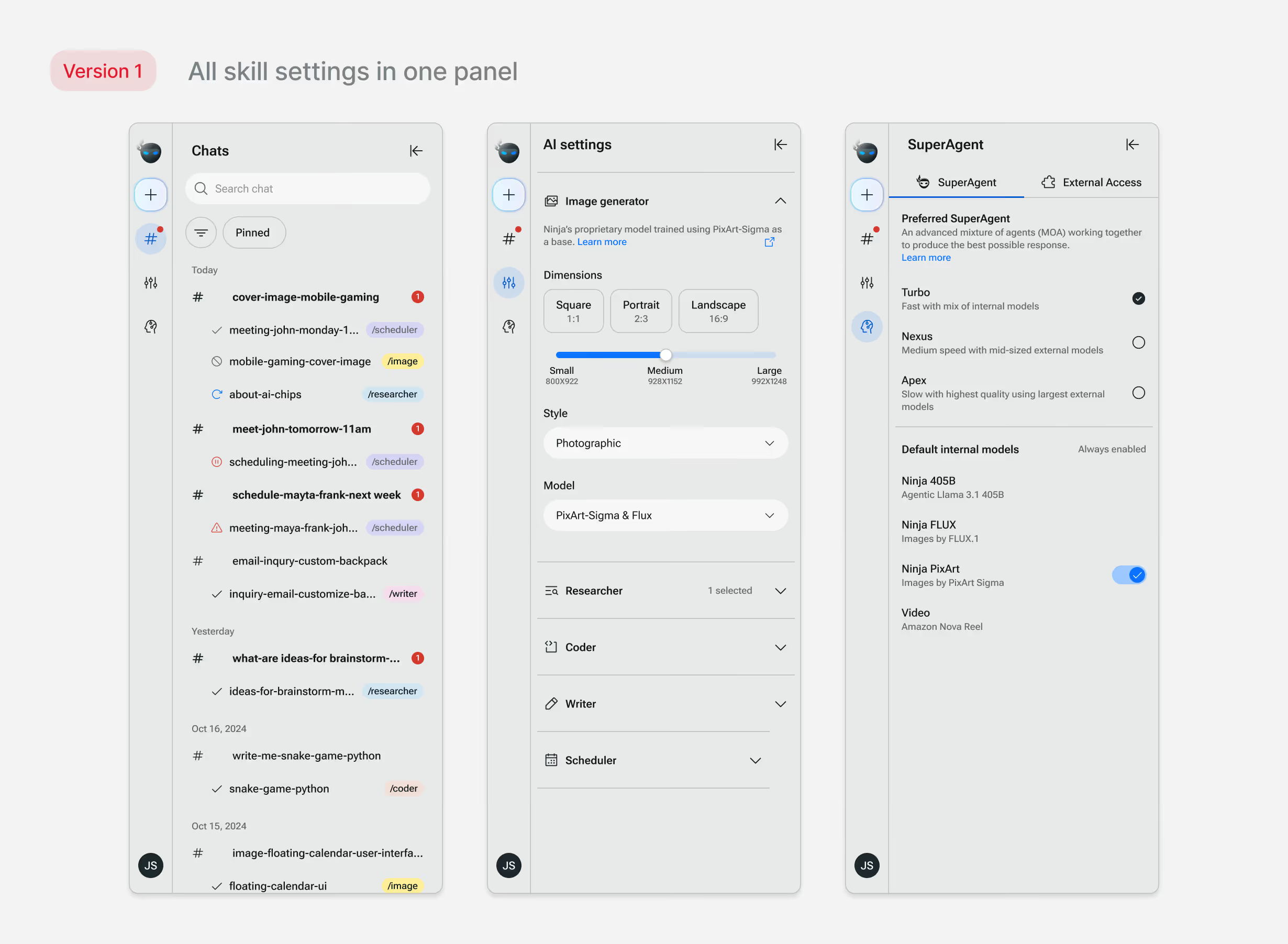
As the product grew, the navigation became inconsistent. The original structure used side panels for different purposes: chat history in one, AI settings in another (image generation, research, coder). Users would adjust settings per task, but those controls lived in a global panel, disconnected from the input. Some users didn't know they could change settings at all.

As we added features like AI App store, projects, memory, the structure broke further. Some panel items were pages, others were settings. The navigation model stopped making sense.

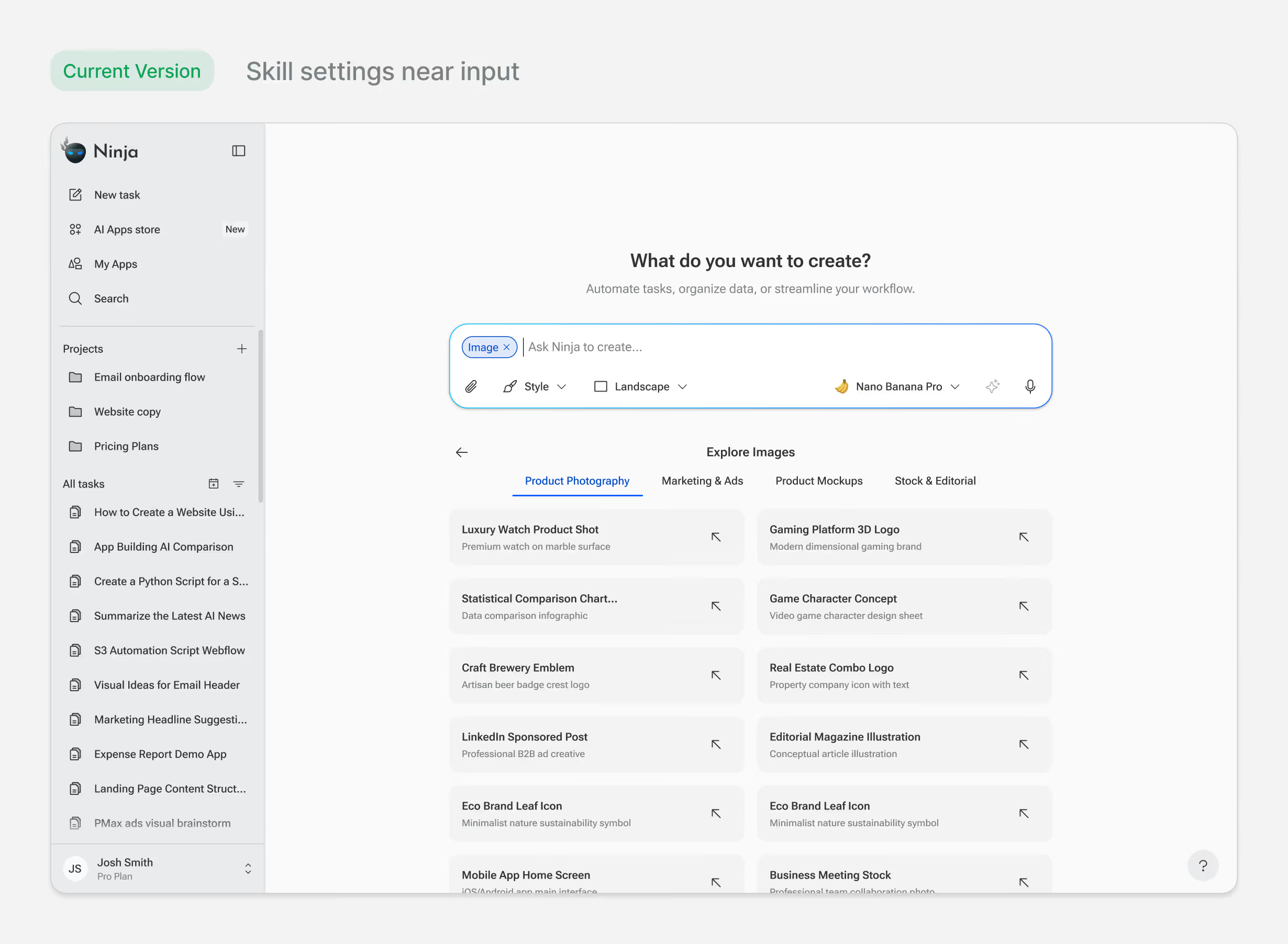
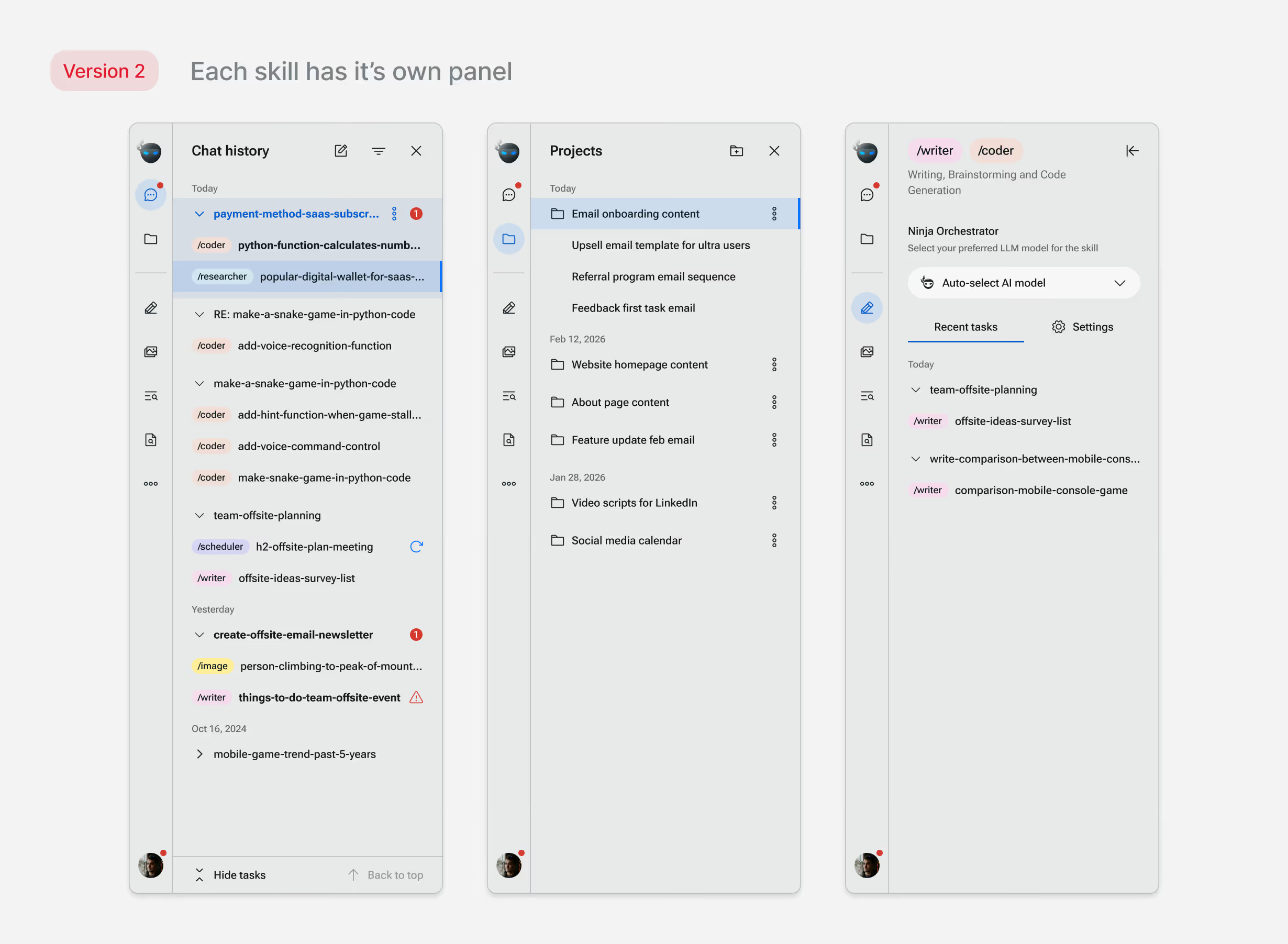
We restructured around two principles: contextual controls belong near the action, and navigation should be consistent. Skill settings became tied to the selected skill, users see their current settings and adjust on a need basis without navigating elsewhere. The side panel became a single navigation surface: pages only, no mixed modes.

We transitioned existing users with in-app explainers on the updated UI. After the change, support tickets about finding or changing settings dropped noticeably.
User interface panel showing three sections: Chats with a list of chat topics and tags, AI settings for image generator with style and model options, and SuperAgent settings with preferred agent types and internal models.User interface showing three panels for Chat history, Projects, and Ninja Orchestrator with categorized tasks and file folders.User interface of Ninja app showing a sidebar with tasks and projects, and a main panel to create image content with style and layout options, plus an image template library.

Final designs

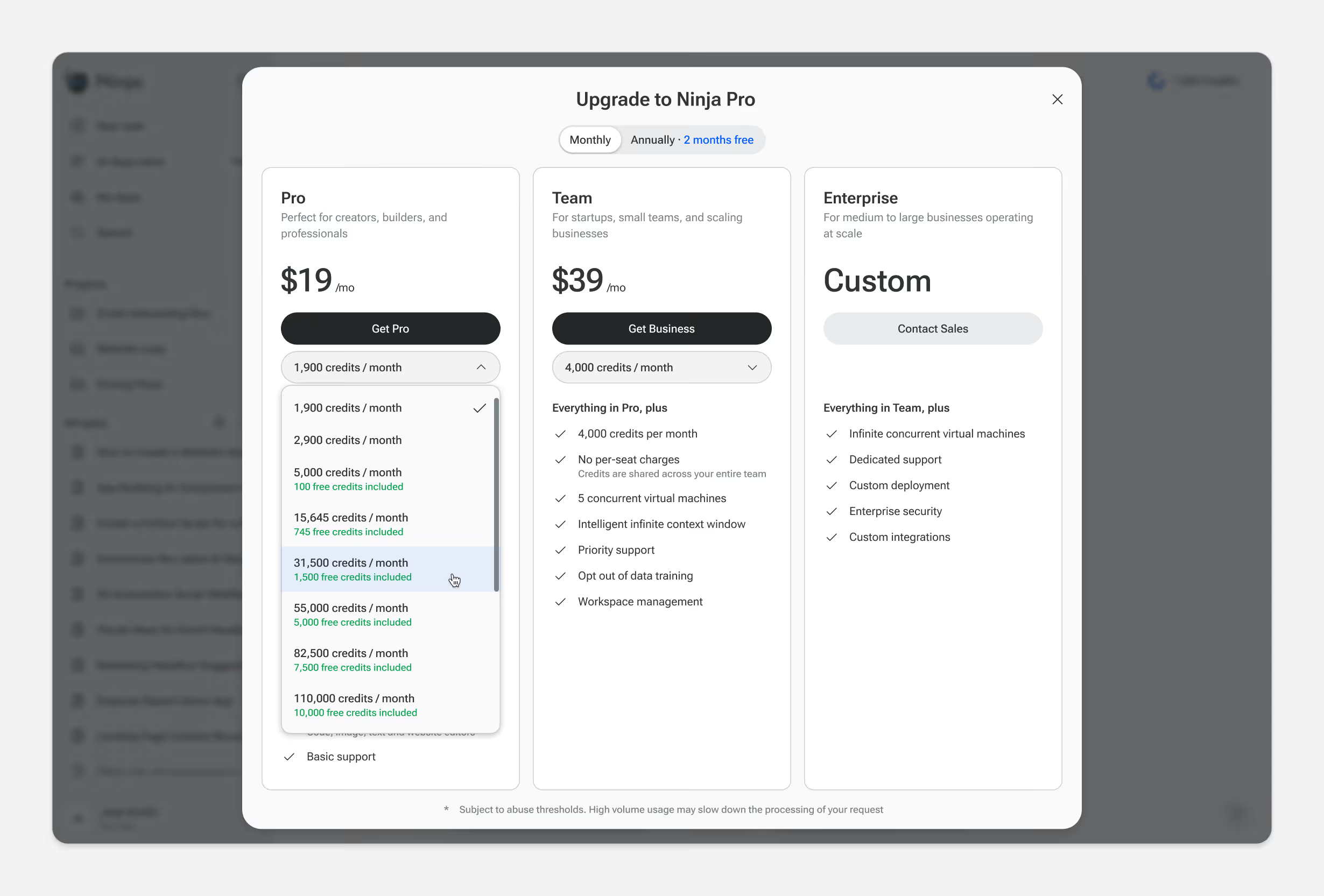
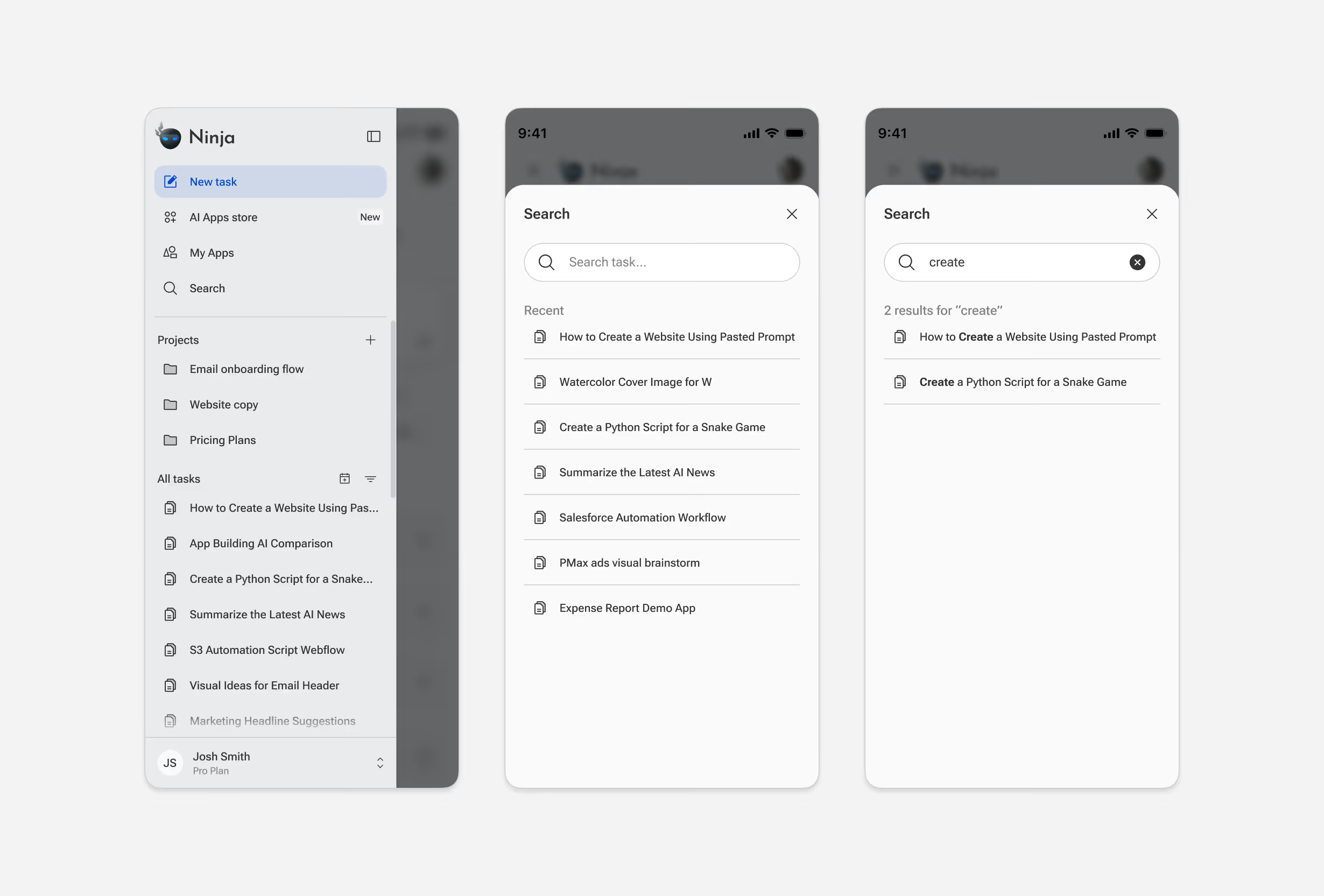
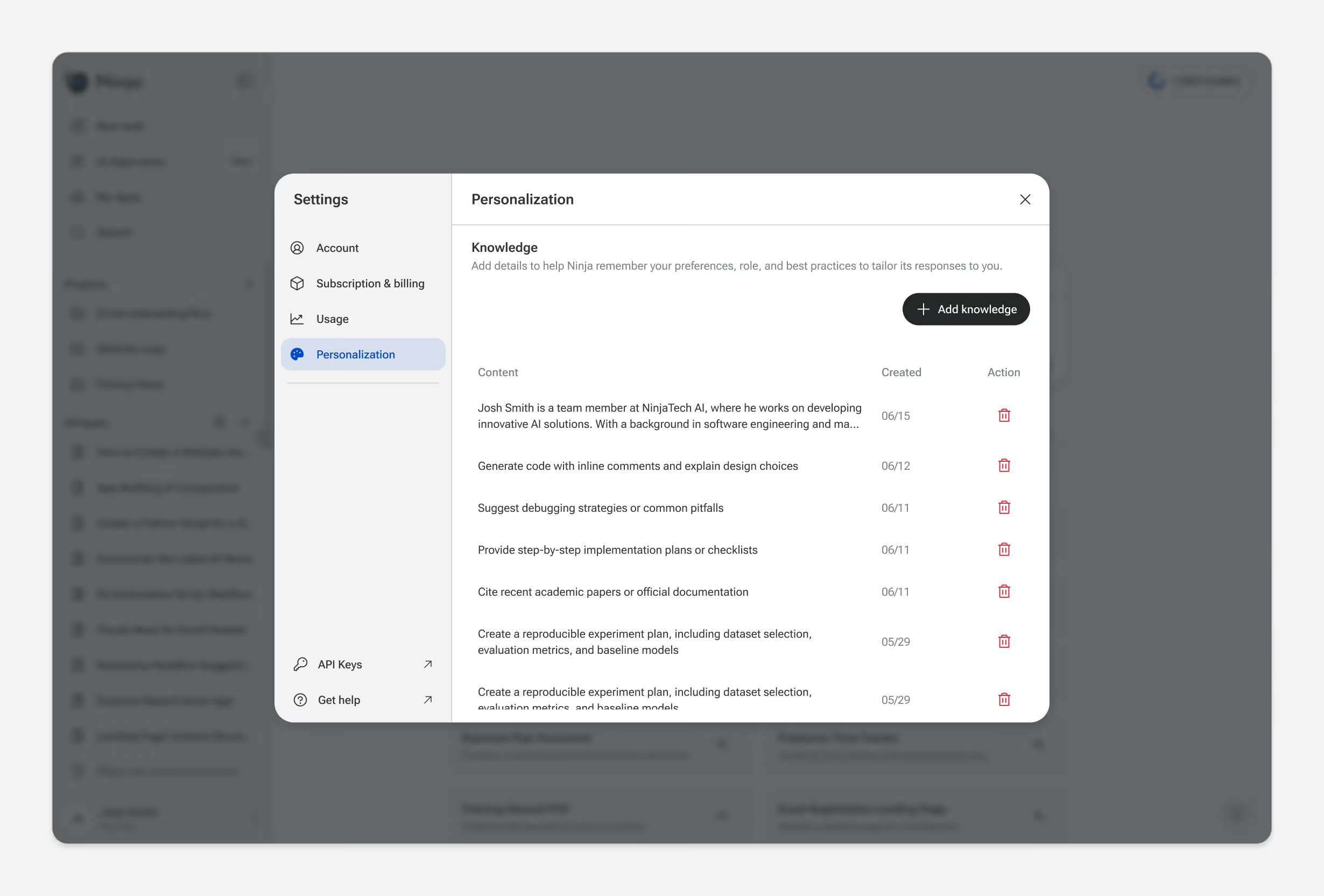
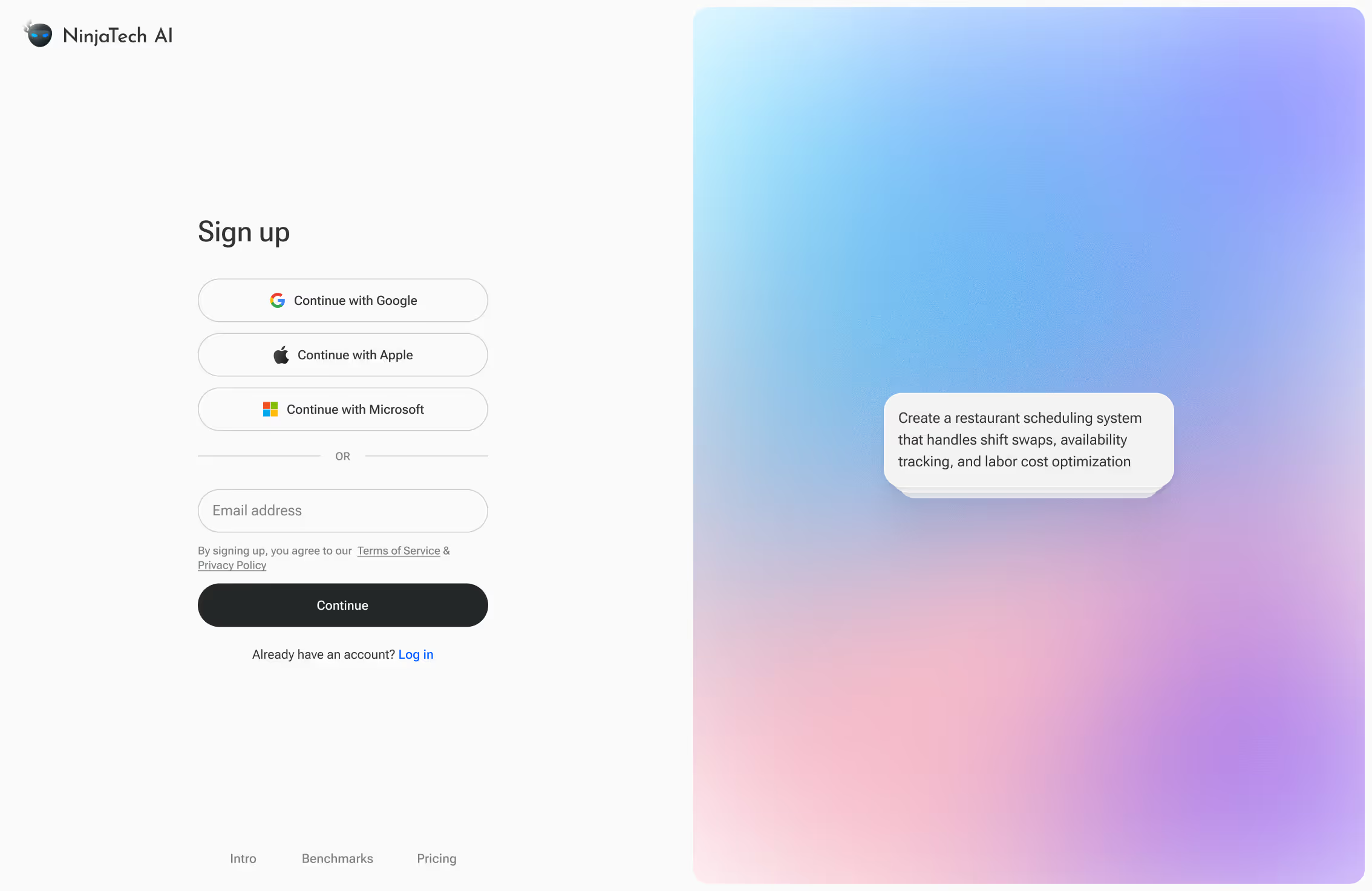
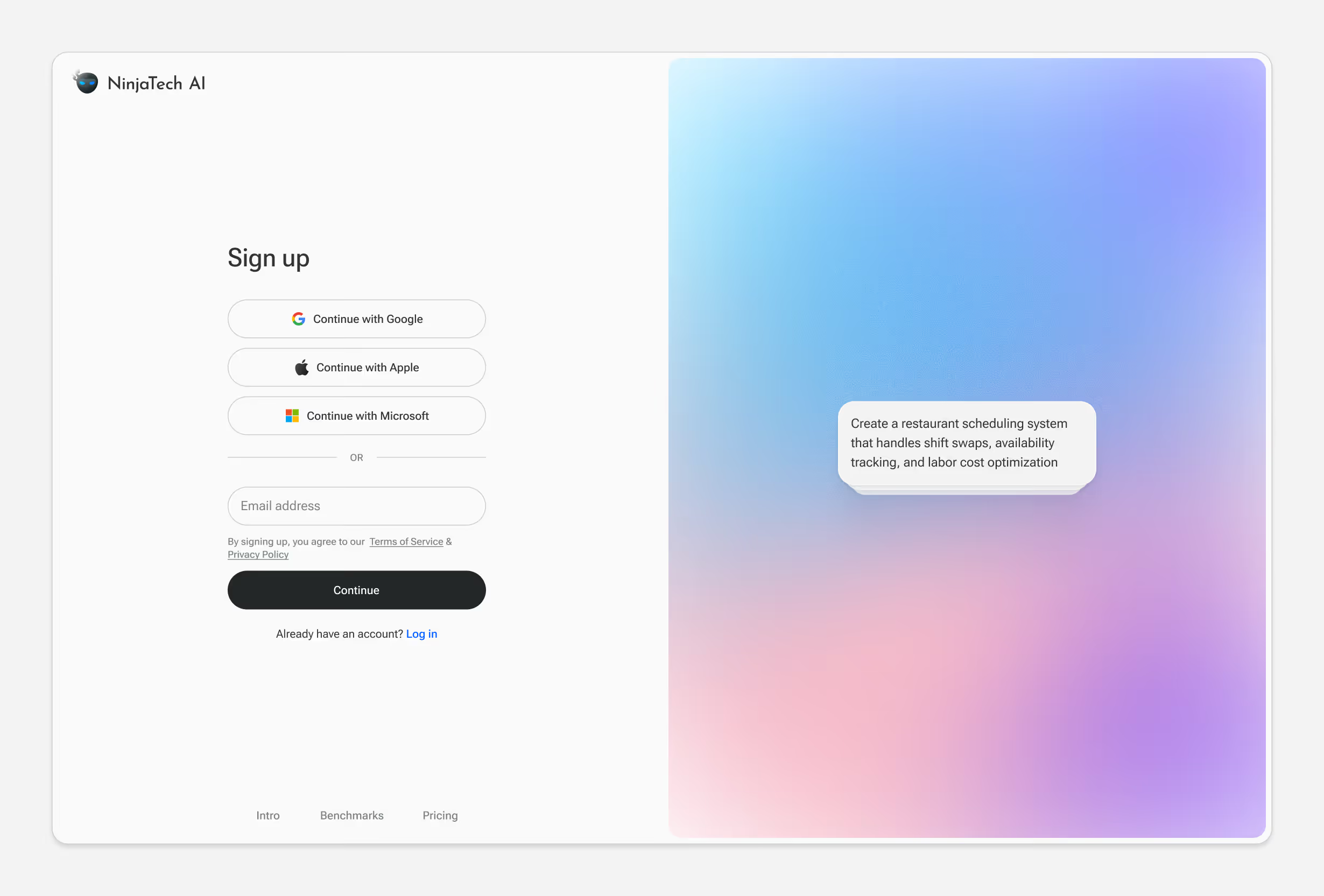
Beyond the core flows, the product spans settings, onboarding, account management, billing, edge cases, and responsive states.
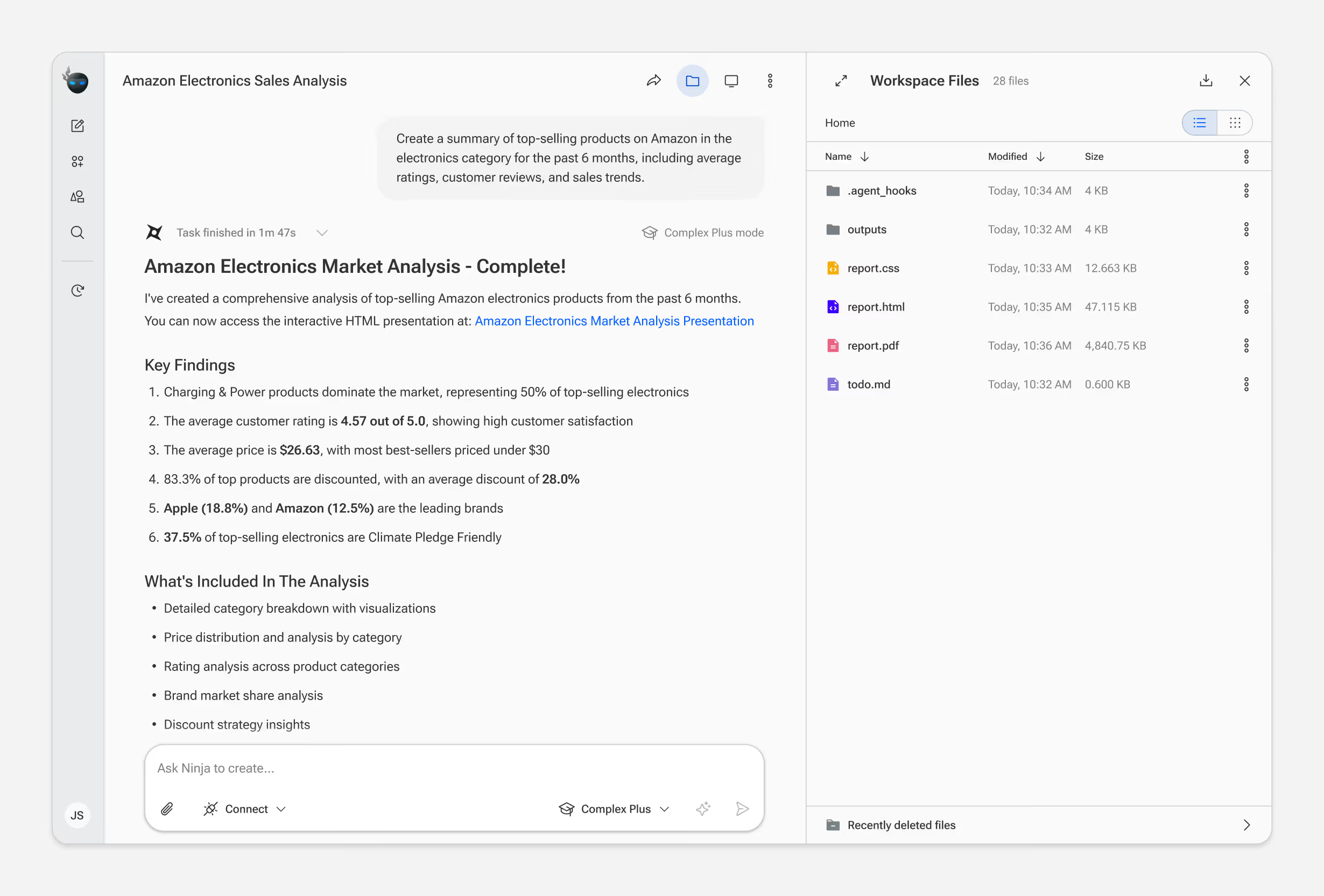
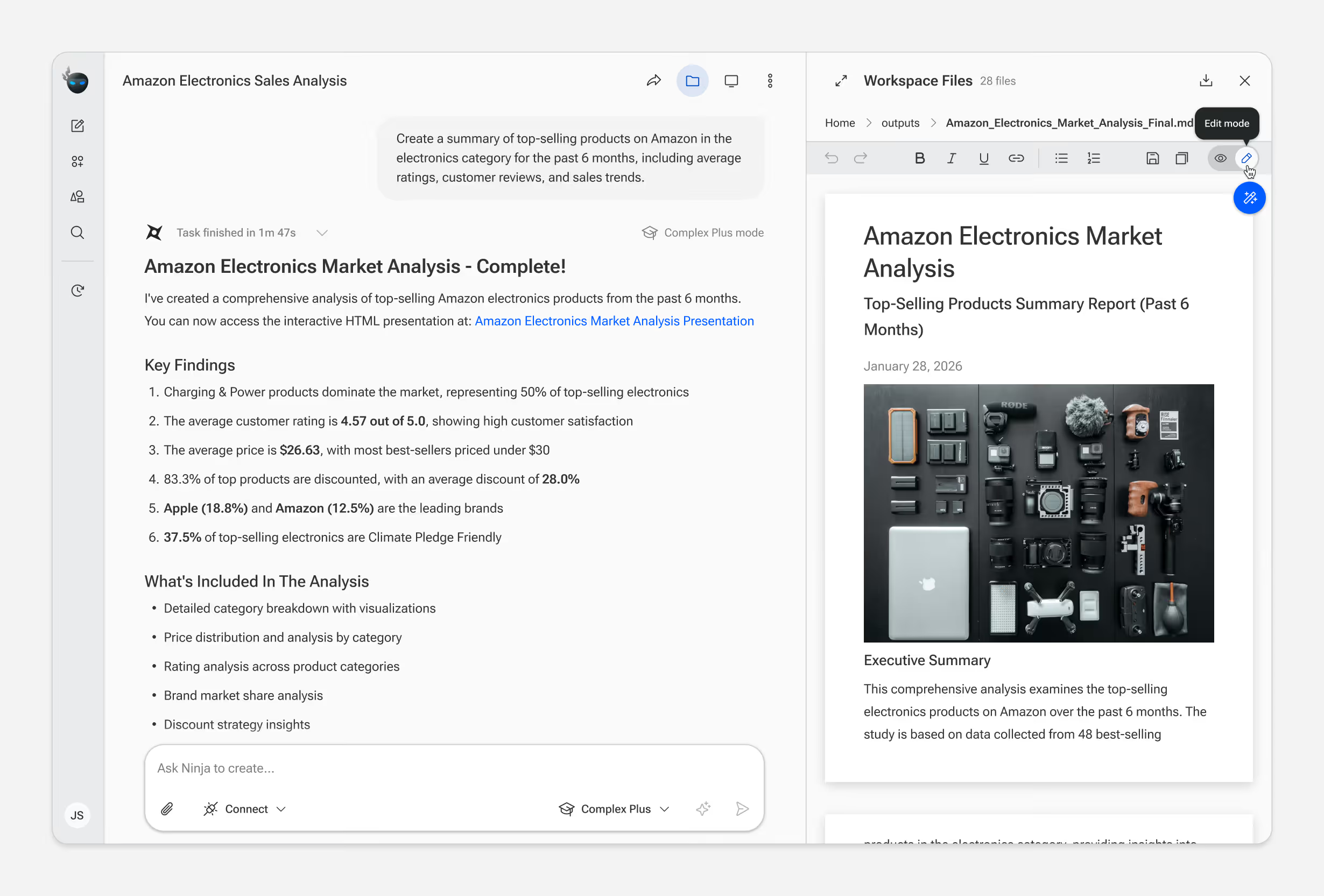
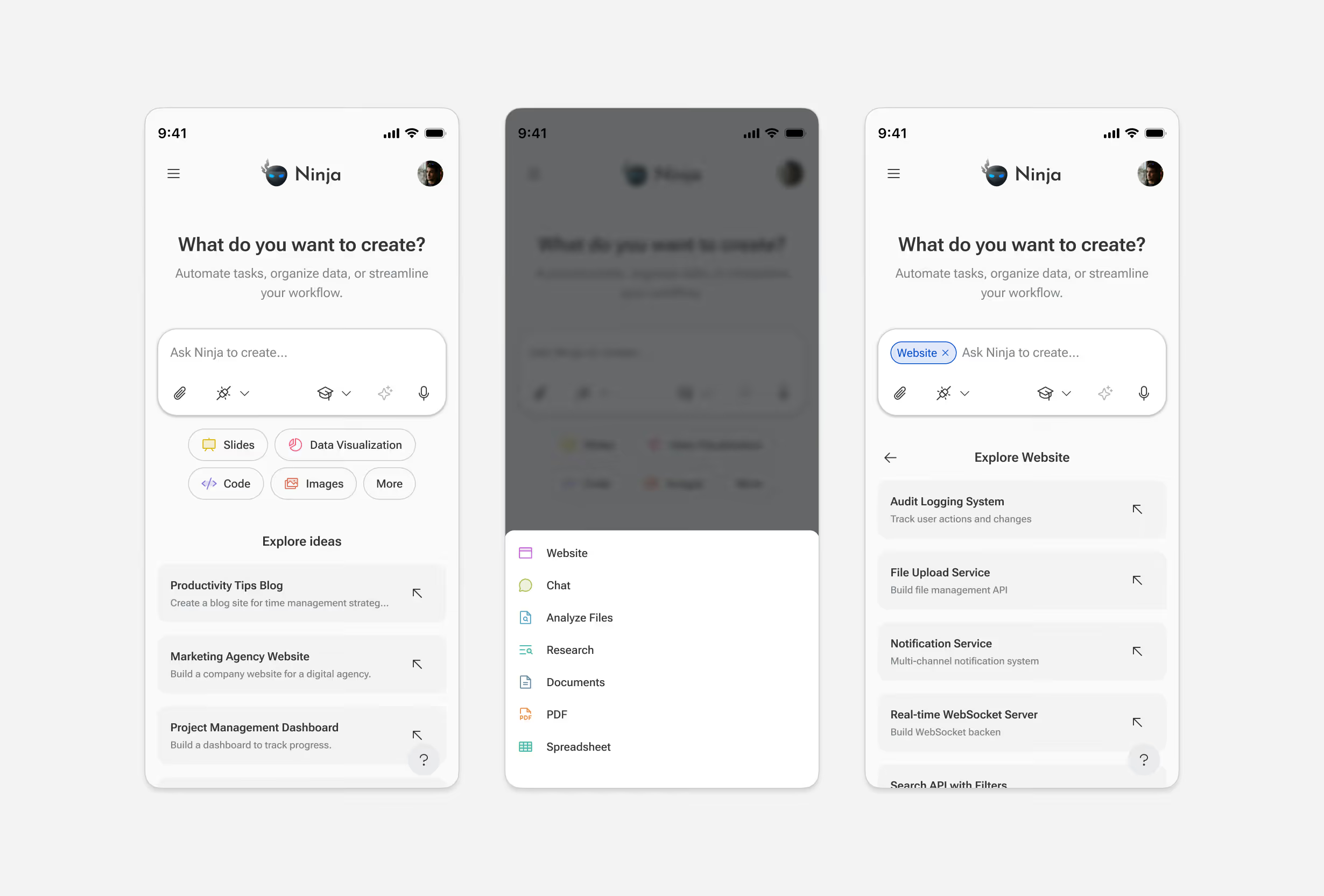
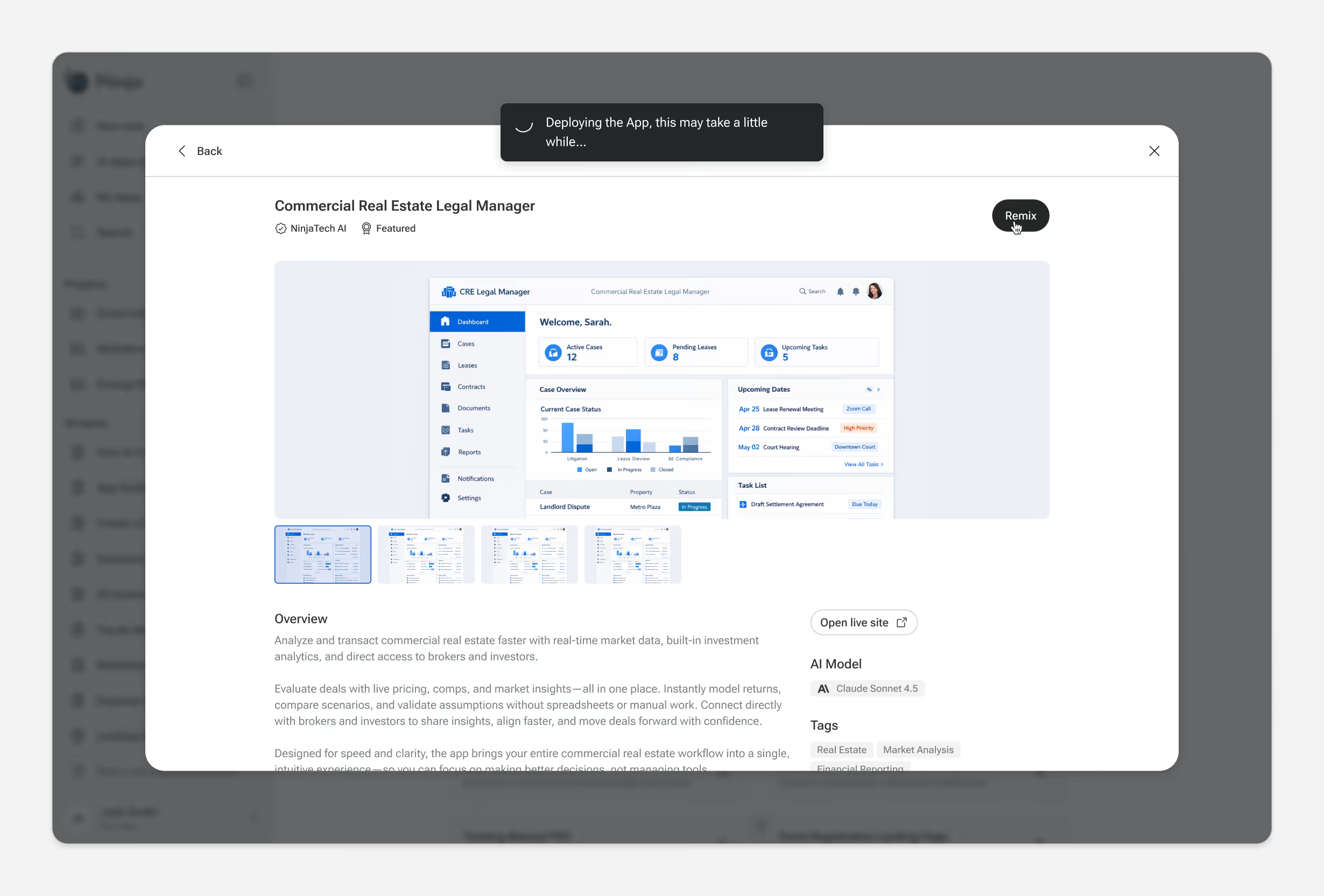
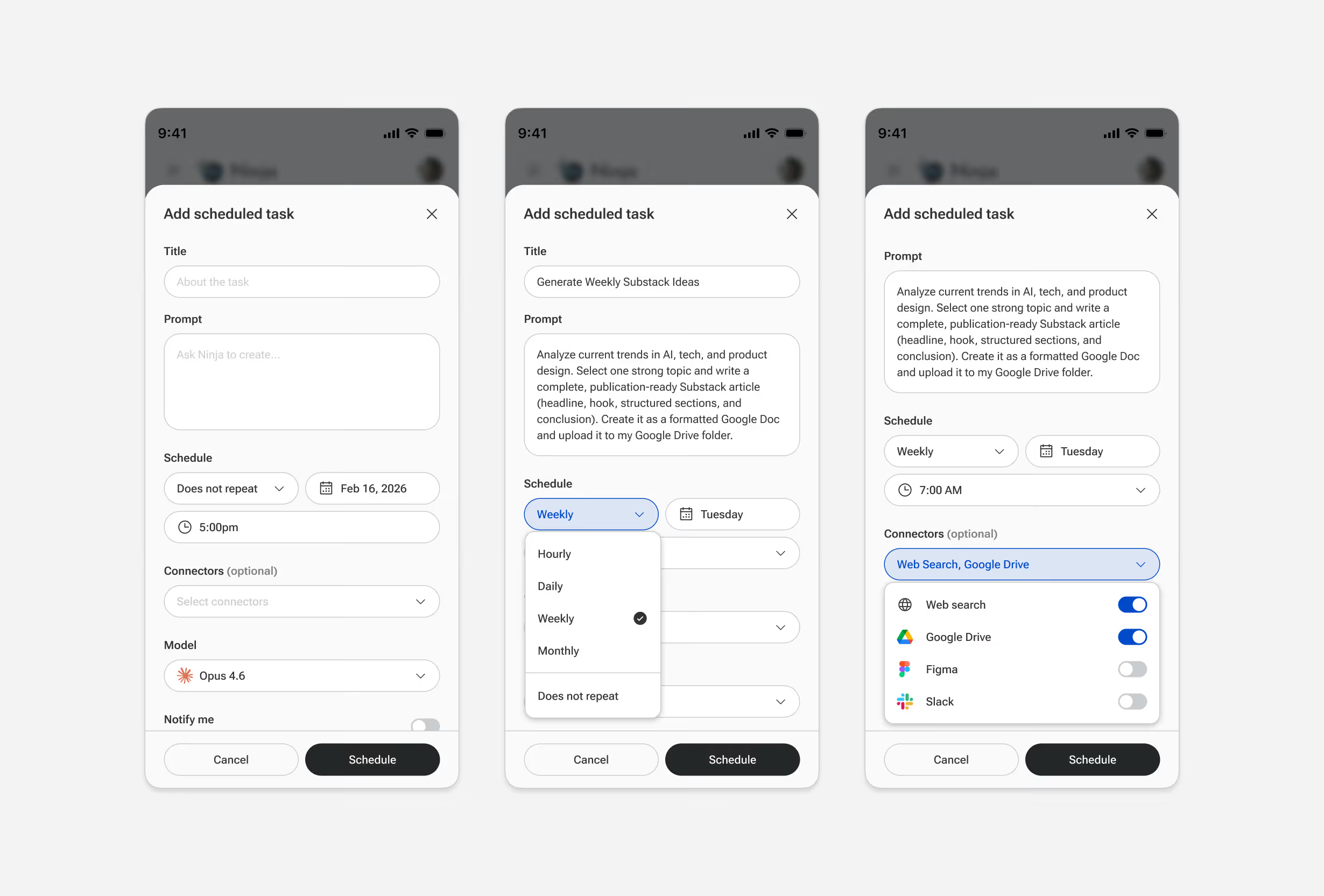
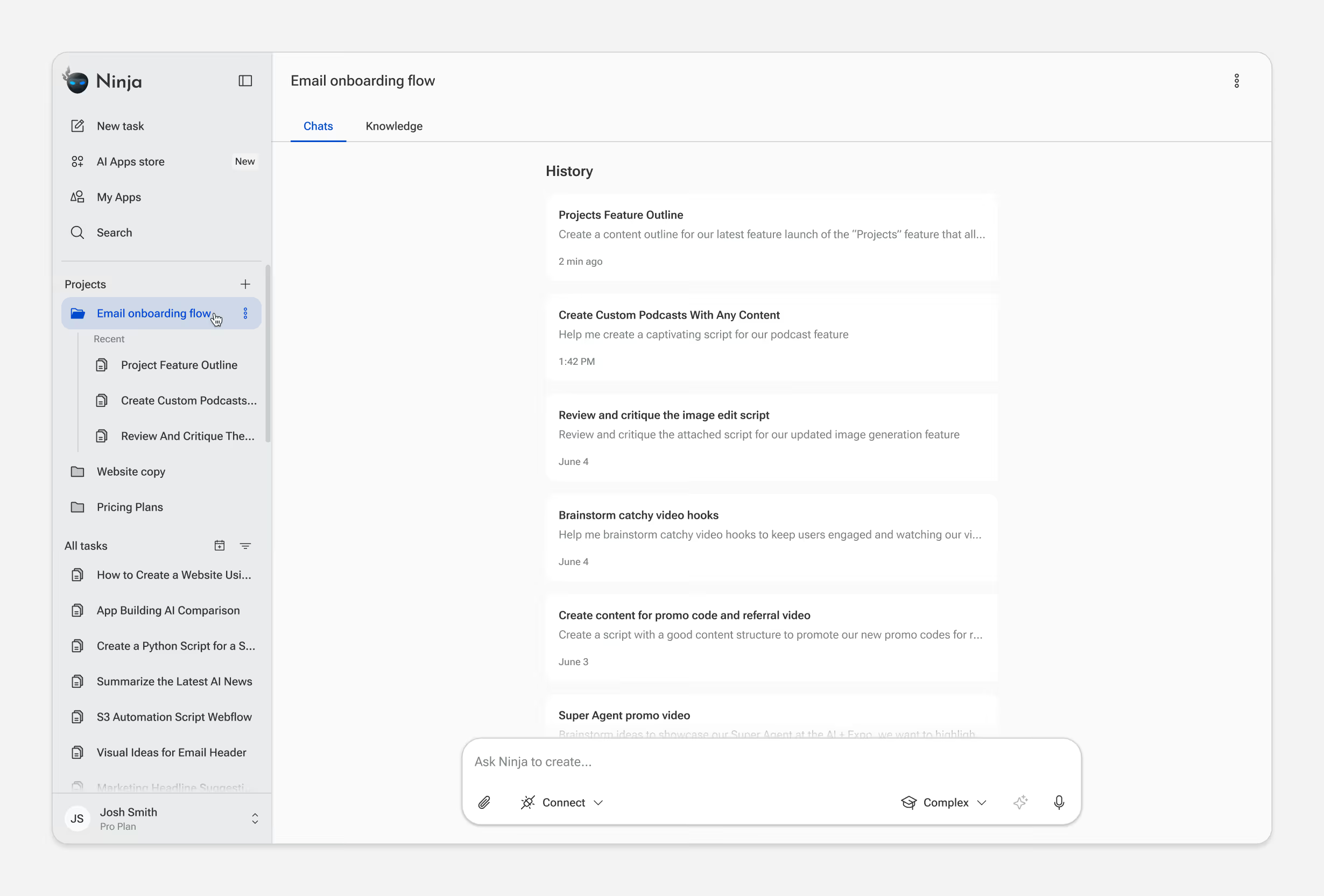
Sign-up page for NinjaTech AI with options to continue with Google, Apple, or Microsoft, email entry, and a colorful gradient background with a note about restaurant scheduling system features.Dashboard interface of Ninja app showing project folders, task list, a prompt to create content with various category buttons, and credits summary with subscription details.Dashboard interface of Ninja app showing project folders, task list, a prompt to create content with various category buttons, and credits summary with subscription details.Dashboard interface showing Amazon Electronics Market Analysis summary and workspace files including report.css, report.html, report.pdf, and todo.md.Screen displaying Amazon Electronics Sales Analysis with key findings and a market analysis report including electronics products laid out on a dark surface.Three mobile screens showing a task automation app named Ninja with options to create content like slides, code, images, and explore templates for blogs, websites, and dashboards, including dropdown menus for different content types and detailed website feature options.User interface of Commercial Real Estate Legal Manager app displaying dashboard with active cases, pending leases, upcoming tasks, case overview, upcoming dates, and task list.Three mobile screens showing an 'Add scheduled task' form with fields for title, prompt, schedule, connectors, model, and schedule buttons.Ninja app interface showing an 'Email onboarding flow' project with a list of recent tasks and a chat input box at the bottom.Pricing plans for Ninja Pro upgrade showing Pro at $19/mo with credit options dropdown, Team at $39/mo with features, and custom Enterprise with contact sales button.Three mobile app screens showing Ninja task manager interface with a sidebar menu, task search results, and filtered search results for 'create'.Settings window open to Personalization tab showing a list of knowledge entries with content descriptions, creation dates, and delete icons.

Outcomes

SuperNinja is live with hundreds of thousands of users. More specifically, design decisions moved measurable outcomes:

4-8x increase

in example prompt usage

1.5M

apps created

$3M ARR

within 12 months of launch

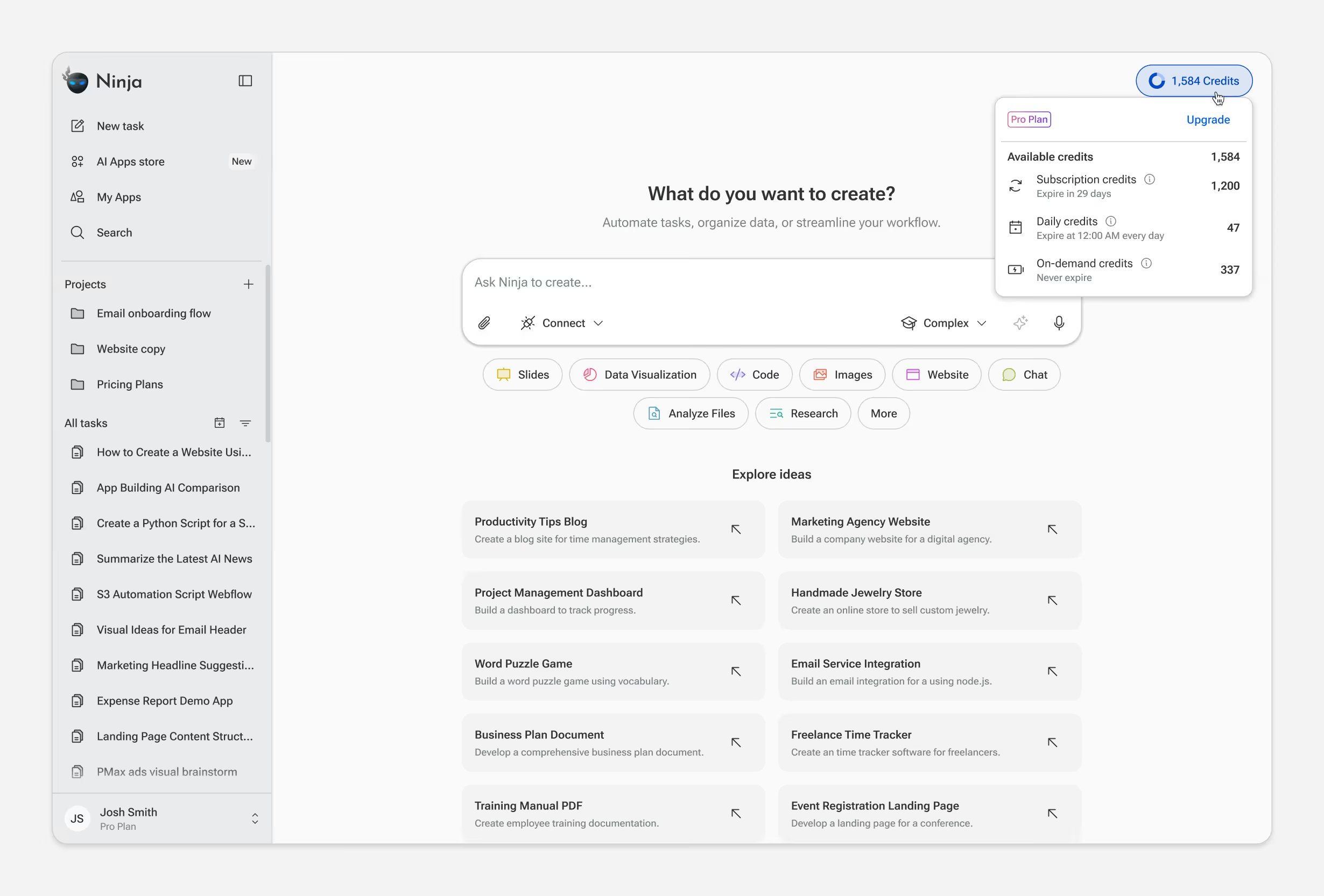
The product continues to evolve. Current work focuses on simplifying our pricing structure, moving from fixed task counts to a credit-based model with optional pay-as-you-go. This lets users run complex, long-running workflows without hitting a wall mid-task. The design challenge is building guardrails around spending while preserving the autonomy the product promises.

Reflections

Two years of shipping features and updates on a bi-weekly basis taught me a few things:

Ship to learn, not to perfect

Live usage taught us more than upfront polish ever could. We shifted to shorter cycles, getting features in front of users faster and iterating based on real data.

Maintain the system in code, not just in Figma

Engineers weren't checking Figma for every button state or little detail. We started maintaining the design system in code, which became a massive velocity boost. The source of truth lived where it mattered most.

Document decisions, not just designs

Two years of iteration means context gets lost. I've started keeping a lightweight decision log. It helps onboard new team members and makes revisiting past tradeoffs faster.